Connections
Windows and switching
Each Rowkery window shows one connection and one database. This page covers opening, switching, reordering and closing windows, moving a window to another connection or database, and what Rowkery restores when you launch it again.
Windows in the title bar
Every window has a pill in the title bar. Click a pill to show that window; the others keep running in the background, so a long query in a window you left carries on.

A pill shows:
- The engine's logo (Postgres or SQLite), or the penguin for a window with no connection yet, named New window.
- The connection's name.
- A dot in the connection's environment colour: prd stg dev local. Environments and safe mode explains the labels.
- A spinner while the window connects, or while a window you aren't looking at still has queries running.
- A warning mark when the window couldn't connect.
- On the shown pill, while it's connected, its safe mode shield. Click it to change the mode (Environments and safe mode).
- An agent mark: on the shown pill while its connection is shared with agents, and on any pill whose connection an agent read in the last minute, with a green dot. Click it to open the Agents page.
- × on the shown pill, and on any pill under the pointer, to close the window.
Hover a pill for its full description: the connection, the database, the environment's full name, and its key (⌘1 to ⌘9 for the first nine windows).
Nothing else sits in the title bar: ⌘K opens search in the middle of the window.
Open a new window
| Do this | What happens |
|---|---|
| Click + after the last pill | A new, empty window opens and is shown |
| ⌘T, or Window › New Window | The same |
| Right-click a pill, New window | The same |
| Pick a database with ⌘↵ in the database switcher | That database opens in a new window on the same connection |
| Save a new connection while the shown window already has one | The new connection gets its own window |
A new window has no connection, so it shows Connect to start. If an empty window is already open, +, ⌘T and the pill menu's New window take you back to it instead of opening another. They also leave the Agents or Settings page.
If you use the TablePlus keymap, New window moves to ⌥⌘T and ⌘T opens a query tab instead. Shortcuts and keymaps lists what each keymap changes.
Switch between windows
| Key or action | What it does |
|---|---|
| ⌘1 to ⌘9 | Shows the first to ninth window, in pill order |
| Window › Next Window | Shows the window to the right, wrapping round to the first |
| Window › Previous Window | Shows the window to the left, wrapping round to the last |
| Click a pill | Shows that window. It also leaves the Agents page if it was open |
Next Window and Previous Window are also in ⌘K. They have no key of their own, and they're available only when you have more than one window.
Reorder windows
Drag a pill left or right. Pressing a pill shows it, so the pill you drag is always the shown window. ⌘1 to ⌘9 follow the new order.
The pill's menu
Right-click a pill to show that window and open its menu:
| Item | When it's there |
|---|---|
| Switch database… | The window is connected to Postgres |
| Switch connection… | The window has a connection |
| Edit connection… | The window has a connection |
| Reconnect | The window has a connection |
| New window | Always |
| Close window | Always |
Close a window
- Click × on its pill, or middle-click the pill.
- Press ⇧⌘W, or choose Window › Close Window.
- Press ⌘W after you last clicked the window's pill or its schema column. ⌘W closes whichever you used last: the query tab, or the window. File › Close Tab in the menu bar renames itself Close Window when ⌘W would close the window.
Closing a window with a connection shows a toast, such as Closed storefront / shop, with Undo. Undo puts the window back where it was, with its tabs, and it connects again when you show it.
Closing the last window leaves one empty window, so there's always a window to work in.
Switch connection
Press ⇧⌘O (Connection › Switch Connection…) to point the shown window at another saved connection.
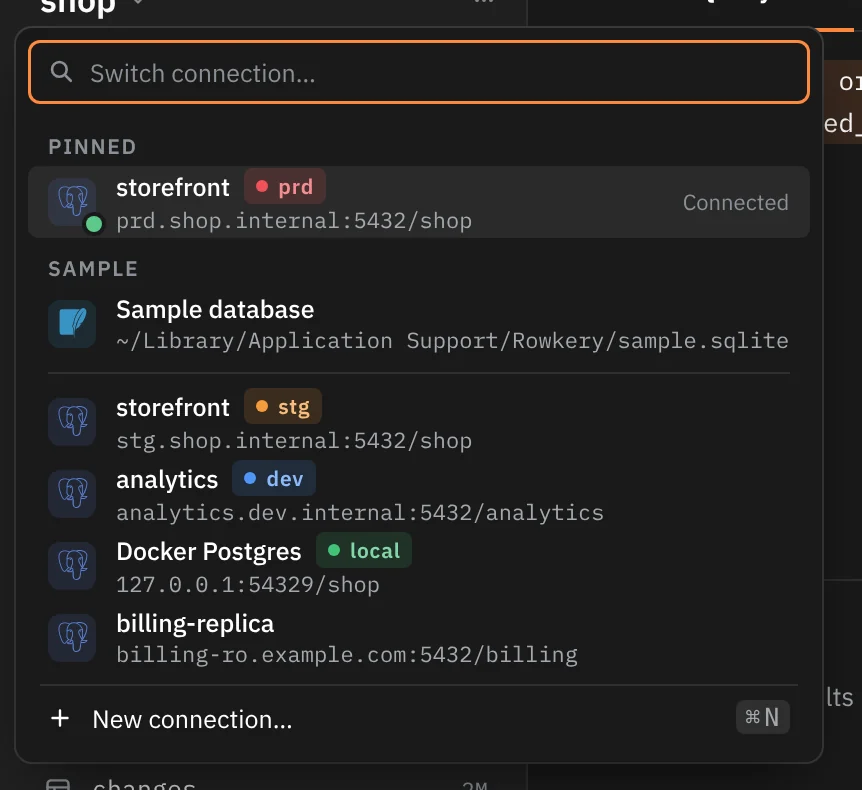
The list opens with the filter box focused, so you can start typing at once.
- Pinned connections come first, then the Sample database, then the rest in the order you saved them. Hover a row and click the pin to pin it to the top, or click again to unpin it. Pins are saved, and Connect to start uses the same order.
- Each row shows the connection's name, its environment tag, and where it points (host, port and database, or the file's path for SQLite).
- The shown window's connection says Connected, Connecting… or Failed. A green dot marks connections open in another window.
- Type to filter by name, by host or database, or by an environment word such as
prd. - ↑ ↓ move, ↵ switches, Esc closes the list.
- ⌘E, or the pencil on a row, edits that connection.
- New connection… ⌘N at the foot opens the connection form.
Switching keeps the window's tabs. Query tabs stay as they are. A table tab whose table doesn't exist on the new connection closes, and a toast such as Closed orders: not in shop offers Undo to bring it back.
Switch database
On a Postgres connection, press ⇧⌘D (Connection › Switch Database…), or click the database name at the top of the schema column.
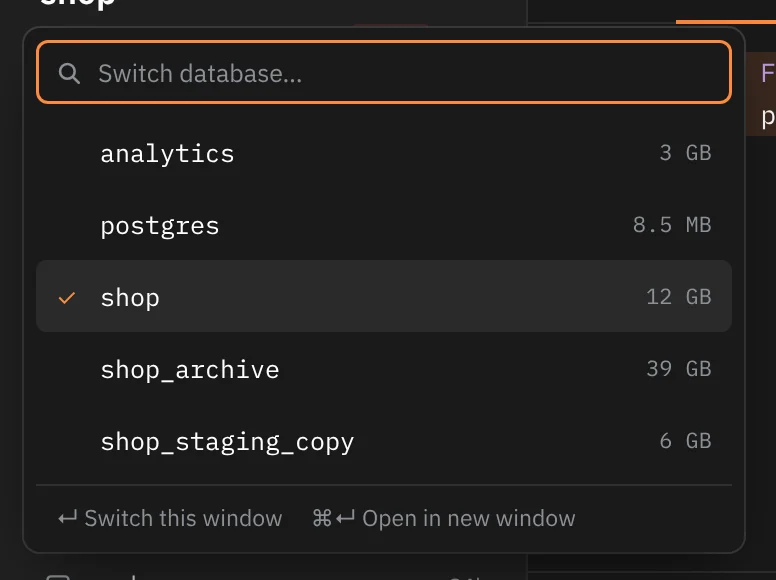
- Rowkery reads the list from the server each time it opens, on one short session, so nothing is polled while it's closed. It lists every database you can connect to, with its size, and leaves out templates.
- The current database has a tick.
- Type to filter. An exact name comes first, then names that start with what you typed, then names that contain it, so ↵ takes what you typed.
- ↵ switches this window to the database. ⌘↵, or ⌘-click, opens it in a new window.
Switch database needs a connected Postgres window. A SQLite file has one database, so the head of the schema column shows the file's name instead.
A window with no connection
A new window shows Connect to start, with the penguin and the line "Nothing connects until you choose."
| Choice | Key | What it does |
|---|---|---|
| New connection | ⌘N | Opens the connection form beside your data |
| Open a SQLite file… | ⌘O | Picks a file. You can also drop a .sqlite or .db file anywhere on the window; the heading changes to Drop to open |
| Paste a postgres:// URL | ⌘V | Opens the form filled in from the URL on your clipboard |
| Open the sample database | ↵ | Opens the bundled sample |
Under them, Your connections lists up to eight saved connections, pinned first, each with Connect ↵. With more than eight, Show all… ⇧⌘O opens the full list. On a Mac, Found on this Mac lists Postgres servers answering on this Mac's ports 5432, 5433 and 54329.
Use ↓ and ↑ to move through every row, and ↵ to open the one you're on. With no row picked, ↵ opens the sample database. Esc clears the pick.
A window with no connection has no schema column. Setting up a connection covers the form and what you can paste.
When Rowkery launches
Rowkery saves your windows as you work: their order, which one is shown, each window's connection and database, and its tabs with their SQL. When you launch it again, the windows come back as you left them.
Only the shown window connects at launch. The others connect the first time you show them, so restored windows cost nothing until you look at them.
A restored window whose connection you've deleted comes back empty, showing Connect to start.
The first time you launch Rowkery with no saved connections, it opens the sample database with a Getting started tab whose query has already run.
Idle sessions
Rowkery keeps a window's server sessions open between queries, so the next query doesn't wait for a new connection. A session unused for two minutes is closed and reopened when you next run something. When you come back to Rowkery after your Mac slept, it checks the open windows' idle sessions in the background, so the first query afterwards finds a live one.
Reload the schema
When tables or columns change on the server, reload them:
- Refresh schema ⌘R (Connection › Refresh Schema), or the ↻ button on the schema column's host line, reloads tables and columns. The window keeps showing the schema it has until the new one arrives, and your query tabs keep their sessions and any open transaction. A toast says Schema refreshed, or Couldn't refresh schema with the reason.
- Reconnect (Connection › Reconnect, the pill's menu, or Reconnect and reload schema in ⌘K) connects the window again from scratch and loads the schema. It closes the window's query tab sessions, so a transaction you left open in a tab ends.
With the DataGrip keymap, Refresh schema is ⌥⌘Y.
When you open a connection Rowkery has seen before, it shows the schema it saved last time at once, with a spinner, then checks the live one and updates the column if anything changed.
When a window can't connect
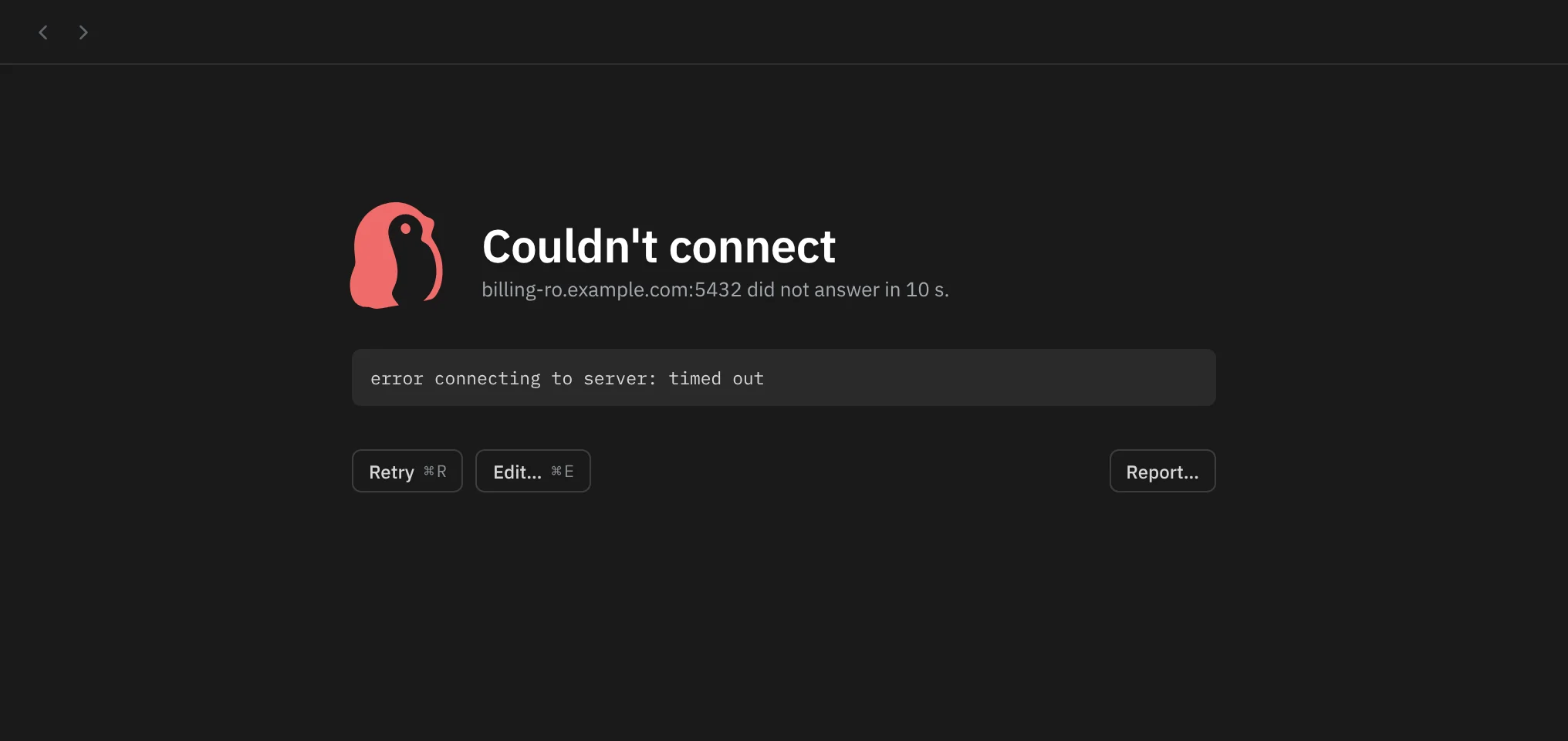
The window shows Couldn't connect in place of the editor and results: one line on what went wrong, the server's own message under it, and three buttons.
- Retry ⌘R tries again. The message stays in place until the new attempt succeeds or fails.
- Edit… ⌘E opens the connection form with the field that failed marked, such as Host or Password.
- Report… opens a report with the error in it, for you to add a note and send.
The window's pill shows a warning mark until it connects. Rowkery gives a Postgres server 10 seconds to answer. Setting up a connection lists the reasons it can give.
The schema column's foot

The schema column ends with a row of buttons. Hover one for its name and key.
| Button | What it does |
|---|---|
| Agents | Opens the Agents page (⇧⌘A). A green dot means this connection is shared with agents. While agents' proposed changes wait for you, it shows their count and opens them |
| Appearance | Cycles Auto, Light and Dark. Its icon shows the current one |
| Presenting | Hides sensitive columns and the host while you share your screen. See Sensitive columns and presenting |
| Help | Opens the shortcut sheet (⇧⌘/) |
Appearance
Rowkery has a light and a dark look. Auto follows your Mac's setting and changes when it does; Light and Dark stay put. The Appearance button is the only theme control in the window. The same three choices are in View in the menu bar (Match System Appearance, Light Appearance, Dark Appearance) and in ⌘K (search "appearance" or "dark"). Rowkery remembers your choice and opens in it next time.
Linux and Windows builds draw their own window buttons. ⌘K there has Use system window controls (next launch) to switch to the system's title bar, and back. The change applies the next time Rowkery starts. The Mac app always uses the native window.
The sample database
The sample is a small SQLite database of an arcade business: kiosks, games, players, wallets, wallet transactions and kiosk sessions, plus a daily_takings view. It's a copy on your Mac, written beside Rowkery's settings, so it's yours to change. It has no environment and safe mode Off.
| Command | Where | What it does |
|---|---|---|
| Open the sample database | ⌘K, Connection › Open the Sample Database, Connect to start | Shows a window already on the sample, or opens it in the shown window if that window is empty, or else in a new window. If you deleted the sample, this brings it back |
| Reset the sample database | ⌘K | Writes a fresh copy over yours, with the original rows, and every window on it reloads. A toast says Sample database reset |
When you save a new connection from a window on the sample, the new connection opens in its own window, and the toast reminds you which ⌘ number returns to the sample.
Deleting the sample works like deleting any connection, and it stays deleted until you choose Open the sample database.