Working with data
Exporting and copying
Copy a cell, a block of cells or the rows you've loaded to the clipboard, or export a whole result, however many rows it has, to a CSV, TSV, JSON or SQL file.
Selecting cells
| Do this | What it selects |
|---|---|
| Click | One cell |
| Drag | A block; the grid scrolls when you drag past its edge |
| ⇧-click, or ⇧ with the arrow keys | Extends the selection from the first cell |
| Click or drag row numbers | Whole rows |
| ⌘A | Every loaded row |
| Esc | Clears the selection |
⌘ with an arrow key jumps to the first or last row or column; Page Up, Page Down, Home and End move by a screen or to the ends.
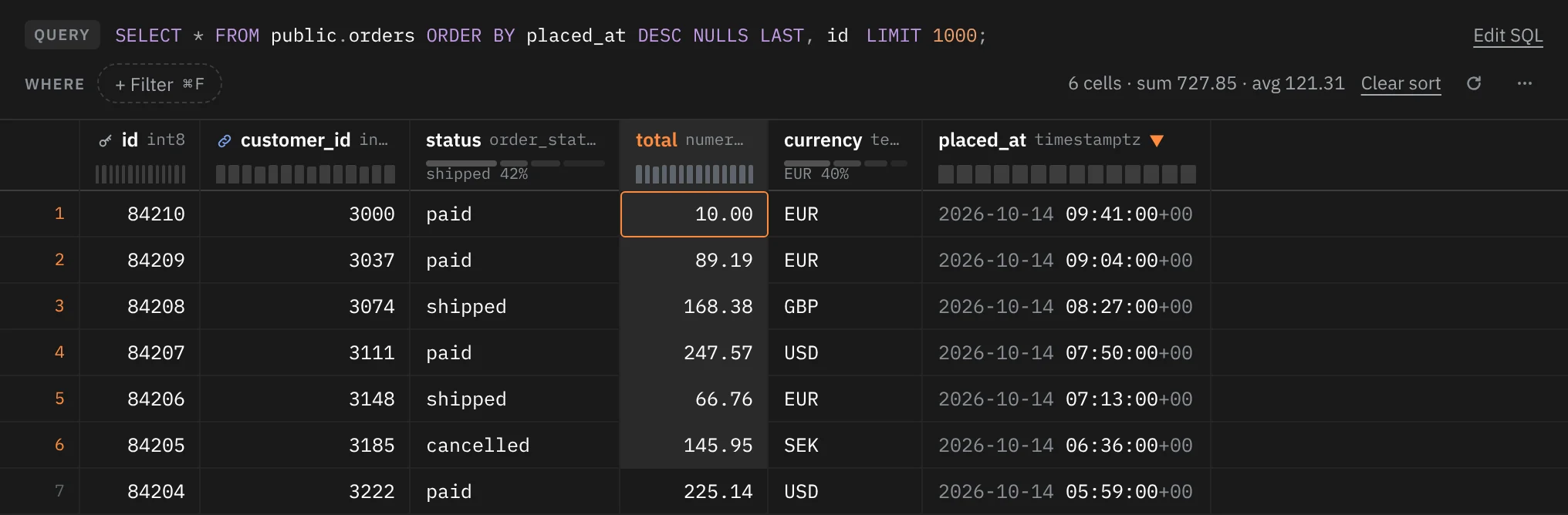
In a table tab, selecting two or more cells shows their count, sum and average on the WHERE line.
Copying cells
| Key | What it copies |
|---|---|
| ⌘C on one cell | The value as it is, with no quoting. A NULL copies as NULL |
| ⌘C on a block | The block as CSV |
| ⇧⌘C | The block as CSV with the column names as its first line |
The CSV quotes values the standard way (RFC 4180), leaves NULL cells empty, and uses the values you've staged but not yet committed. A toast confirms what was copied, such as Copied 6 cells · CSV, or Copied 3 rows · CSV when you selected whole rows.
Right-click a cell for Copy and Copy as CSV with headers too.
While you're presenting, sensitive values show as dots on screen, but copying puts the real value on the clipboard. See Sensitive columns and presenting.
Copying the results
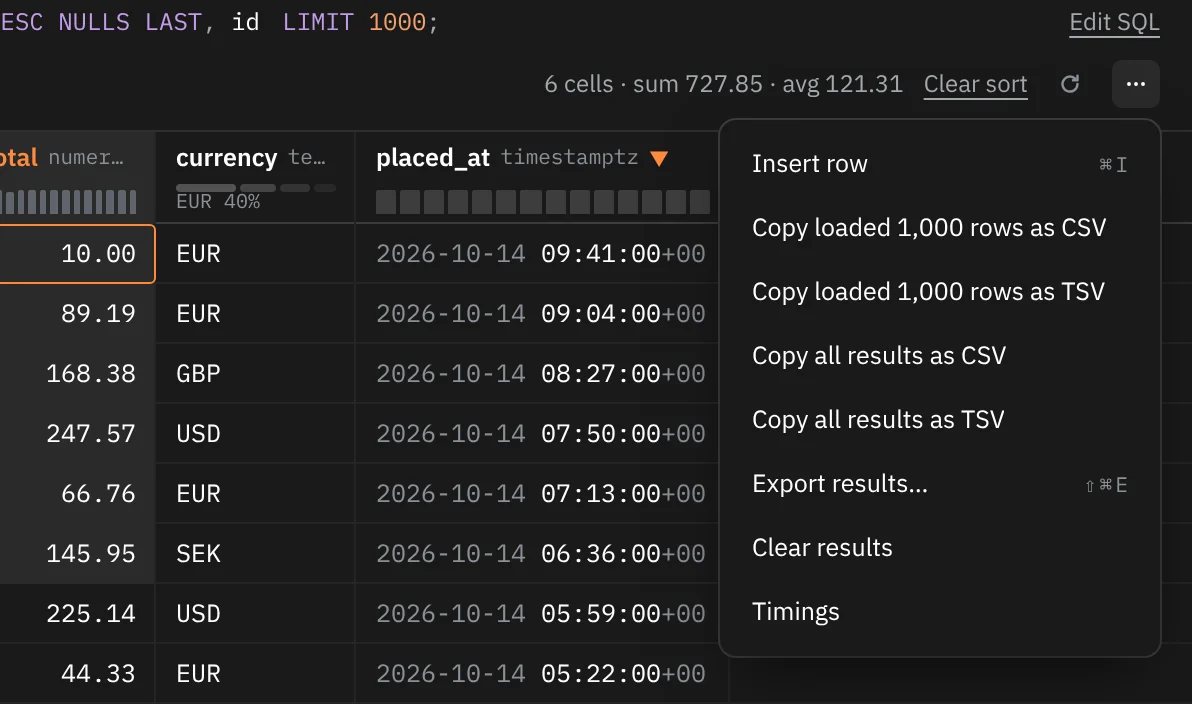
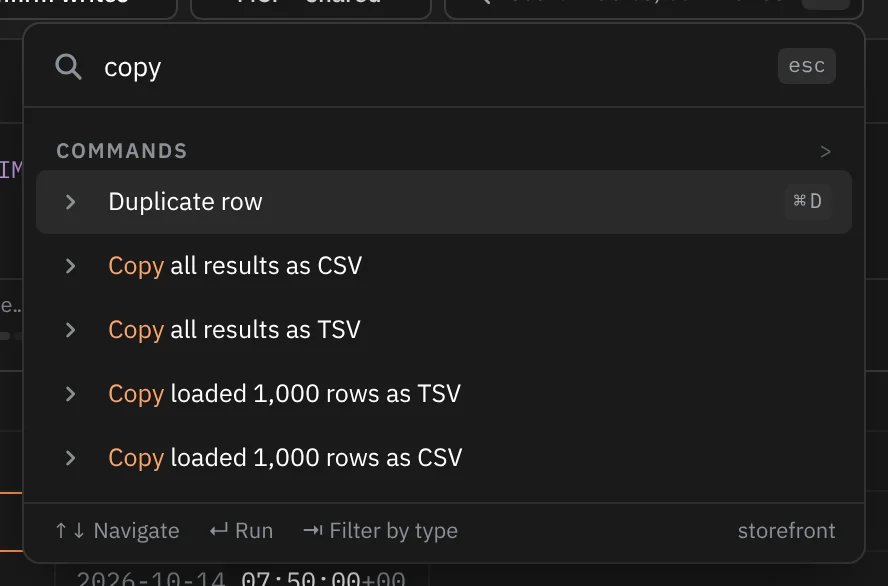
To copy everything you've loaded, without selecting it, use ⌘K or the … menu at the end of the WHERE line (in a query tab, at the top of the results):
| Command | What it copies |
|---|---|
| Copy results as CSV / TSV | Every row, with a header line, when all of them are loaded |
| Copy loaded 1,000 rows as CSV / TSV | The rows loaded so far, when more remain |
| Copy all results as CSV / TSV | The whole result, including rows not loaded yet |
Copy Results as CSV is also in the menu bar under Query.
Copy all results appears only while rows remain unloaded. Rowkery runs the whole query again and streams it to the clipboard; the tab reads Copying with a row count and a Cancel button. A toast says Copied 84,000 rows · CSV when it's done.
Exporting results
Export results… ⇧⌘E writes a whole result to a file. It's also in the … menu, in ⌘K, behind the query tab's Export button, and in the menu bar under Query › Export Results….
Choose where to save
The Mac's save dialog opens, suggesting the table's name, such as orders.csv. Pick a format from the list, or type the extension yourself.
Watch it run
Rowkery runs the query and writes the file batch by batch as the rows arrive. The tab reads Exporting with a row count. Cancel, Esc or ⌘. stops it.
Find the file
A toast says how many rows went to which file, such as Exported 84,000 rows · orders.csv.


If you close the save dialog without saving, nothing happens. A stopped export says Export cancelled; a failed one says Couldn't export.
What gets exported
The export is the whole result, not only the rows on screen:
- A table tab exports its query without the LIMIT, keeping your filters, sort and hidden columns. Filter first to export part of a table.
- A query tab runs again the last statement it ran.
Only a query that reads can be exported; anything else says Only a query that reads can be exported. The export runs in the tab's own session, so on Postgres it sees the same data as your queries there, including changes inside a transaction you have open.
Formats
The file's extension picks the format.
| Extension | Format |
|---|---|
.csv | CSV (RFC 4180). NULL is an empty field; binary values are written as \x hex |
.tsv or .tab | Tab-separated. Tabs and line breaks inside a value become spaces |
.json | One JSON array of objects keyed by column name. Integers keep every digit |
.sql | One INSERT INTO … VALUES …; per row, ready to load into another database |
| anything else | CSV |
A SQL export's INSERTs name the tab's table, or the one table a query reads. When a query reads several tables, they name a table called results, which you can change before you load the file.