Working with data
Importing a CSV
Load a CSV or TSV file into a table you already have. Rowkery matches the file's columns to the table's, shows its first rows in the grid, and writes every row in one transaction, so a file goes in whole or not at all.
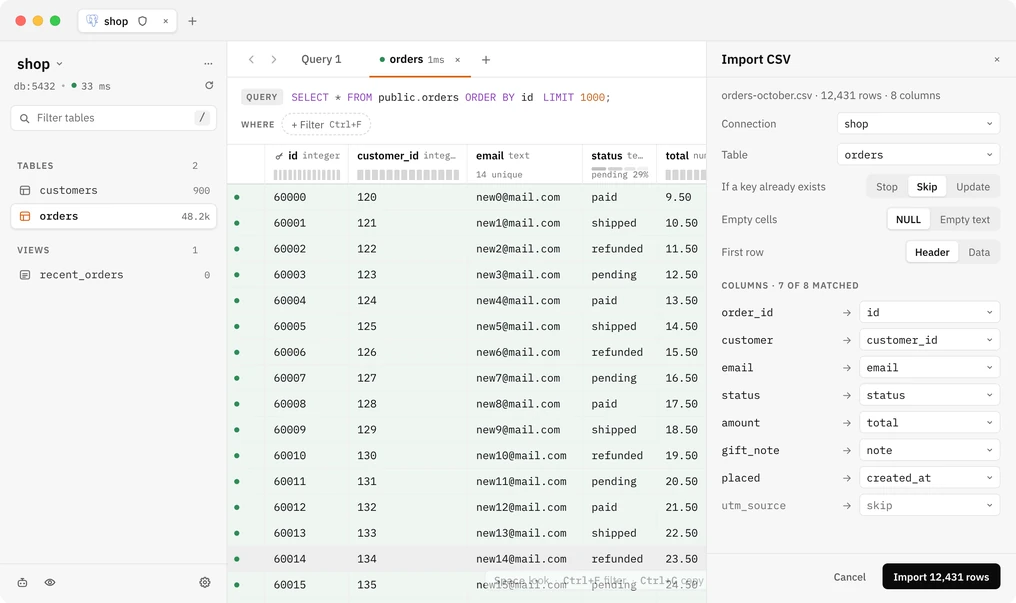
Starting an import
Import CSV… works from anywhere on a connection. Pick the file, and the panel opens beside the grid of the table it's going into:
- ⌘K › Import CSV…
- File › Import CSV… in the menu bar.
- Import CSV… in the … menu at the top of the schema panel or under the results.
- Import CSV… in the … menu of a table in the schema panel, or right-click it: into that table.
- Drop a
.csv,.tsvor.tabfile onto the window. No file picker: the dropped file is the one read. Dropped onto a table in the schema panel, it goes into that table.
Picking the table
The panel starts with Connection set to the window's and Table set to:
- the table you picked it from or dropped the file on,
- else the table tab you're on, unless it's a view,
- else the table the file fits best: the one that matches at least half its columns, or that it's named after, so
orders-october.csvgoes toorders.
Click Table to pick another; the list puts the best fits first and says how many of the file's columns each one matches, such as 5 of 8 columns. Type to filter it and press ↵. When nothing fits, Table says Choose… and the rest waits for one.
Click Connection to import into another connection instead (Read-only ones aren't listed). The import moves to a window on it, opening one if none is, and picks the table there the same way.
Views can't be imported into, and neither can a generated column or an identity column the database always fills in: skip those.
Matching columns
The first row names the file's columns. Each one matches a table column by name, ignoring case, spaces and underscores: Customer ID goes to customer_id. When a name nearly fits one free column, it goes there too, so customer goes to customer_id and order_id to id on the orders table. Anything else is skipped.
Click a column's picker to send it somewhere else or to skip it. A table column can take only one of the file's columns; picking one that's taken frees the other.
If the first row names none of the table's columns, Rowkery reads it as data and matches the file's columns to the table's in order. First row: Header / Data switches between the two.
What the grid shows
The import opens in a tab of its own, Import · table, beside the panel. Its grid has the table's columns and the file's first 20 rows, the way the table will get them. A column you haven't mapped shows default: it gets the column's DEFAULT, or NULL when it has none. Until a table is picked, the grid shows the file as it is.
Closing the tab is the panel's Cancel. After the import, the table's own tab opens with the new rows.
Choices
| Choice | What it does |
|---|---|
| If a key already exists: Stop | The import stops when a key is taken, names it, and writes nothing. The default |
| Skip | Rows whose key is taken are left out; the rest go in |
| Update | Rows whose key is taken update that row; an empty cell keeps the value it has. Offered when the table has a primary key |
| Empty cells: NULL | An empty cell is NULL, or the column's DEFAULT when it has one. The default |
| Empty text | An empty cell is empty text in text columns; other columns still get NULL or their DEFAULT |
Running it
Import N rows writes the file. On a connection in Confirm writes safe mode, that button is the confirmation. On a Read-only connection the import is refused. See Environments and safe mode.
The panel shows the rows sent so far, a clock and Cancel and roll back, which stops the import and writes nothing. When it's done, a toast says what went in, such as Imported 12,000 rows · skipped 431, and the grid loads again.
The import runs in a session of its own, never in a tab's, so a transaction you have open in a tab isn't part of it and doesn't see its rows until it commits.
When a value doesn't fit
A value the column can't take stops the import, writes nothing, and keeps the panel open with the line and column it's on:

A rule of the table, such as a NOT NULL, CHECK or foreign key, also stops it and shows the database's message.
Fix the file, or skip that column, and import again. Values follow the same rules as typing into a cell: see Editing rows.
Files it reads
- Comma, tab, semicolon or bar separated, guessed from the first line; quoted values can hold commas, quotes and line breaks.
- UTF-8 text, with or without a byte order mark.
- Every row needs as many values as the first row.
Creating a new table from a file isn't supported yet: create the table first, then import into it.