Keys
Search with ⌘K
⌘K finds a table, a query you ran, a saved connection or any command, and opens or runs it from the keyboard. It is also where a pasted connection string or SQLite path goes.
Open it
Press ⌘K anywhere in the window, or choose it from the menu bar. The search opens in the middle of the window, over the window blurred and dimmed, with its field already focused, and it always starts empty. Press ⌘K again, Esc or click outside it to close it.
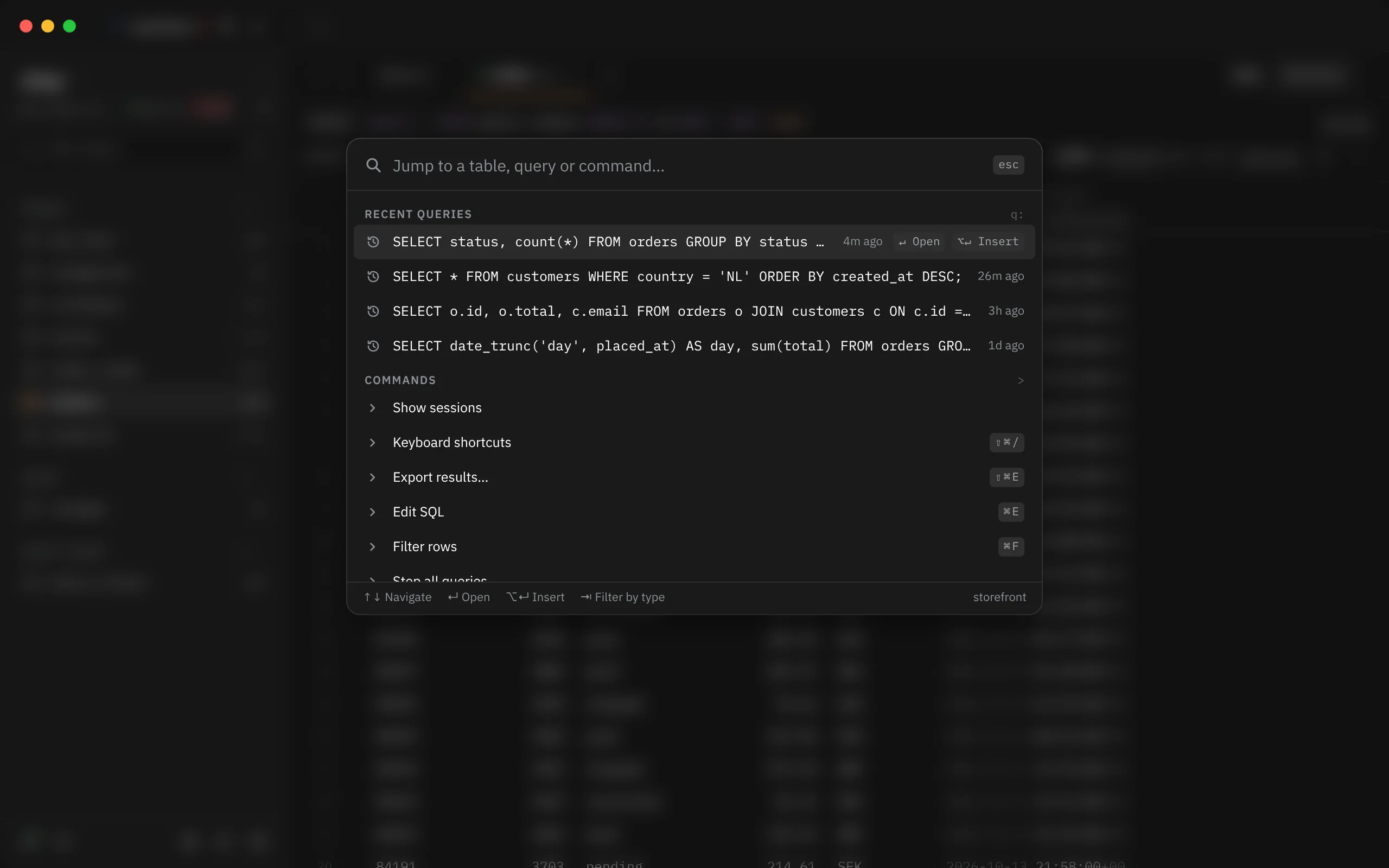
The footer shows the keys for the highlighted row and, on the right, the name of the window's connection.
What it finds
| Group | What's in it | Where it comes from |
|---|---|---|
| Tables | Every table and view of the window's database, as schema.name, with its approximate row count | The schema shown in the schema column. Partitions are left out, so their parent table stands for them |
| Recent queries | SQL you ran on this connection, newest first, with how long ago | The last 50 statements you ran on the connection. Running the same SQL again moves it to the top. Opening a table from the schema column or from ⌘K isn't added |
| Connections | Your saved connections, with their environment and host. The one this window uses says Connected | Your connection list |
| Commands | Every command that can run right now, with its key | The same list the menu bar and the shortcut sheet use |
When a window is connected to more than one database, each table also shows the database it belongs to. With no connection open, the field reads Search commands and connections… and there are no tables or recent queries to find.
Columns, databases and environments aren't items of their own. To change database, use Switch database… (⇧⌘D); to change the environment tag, use the Set environment commands below.
Before you type
The empty search lists Recent queries, Commands and Connections, up to eight of each. The commands you pick most often from ⌘K come first, so the list soon matches what you use. If there's nothing to show, it says Type to search.
How matching works
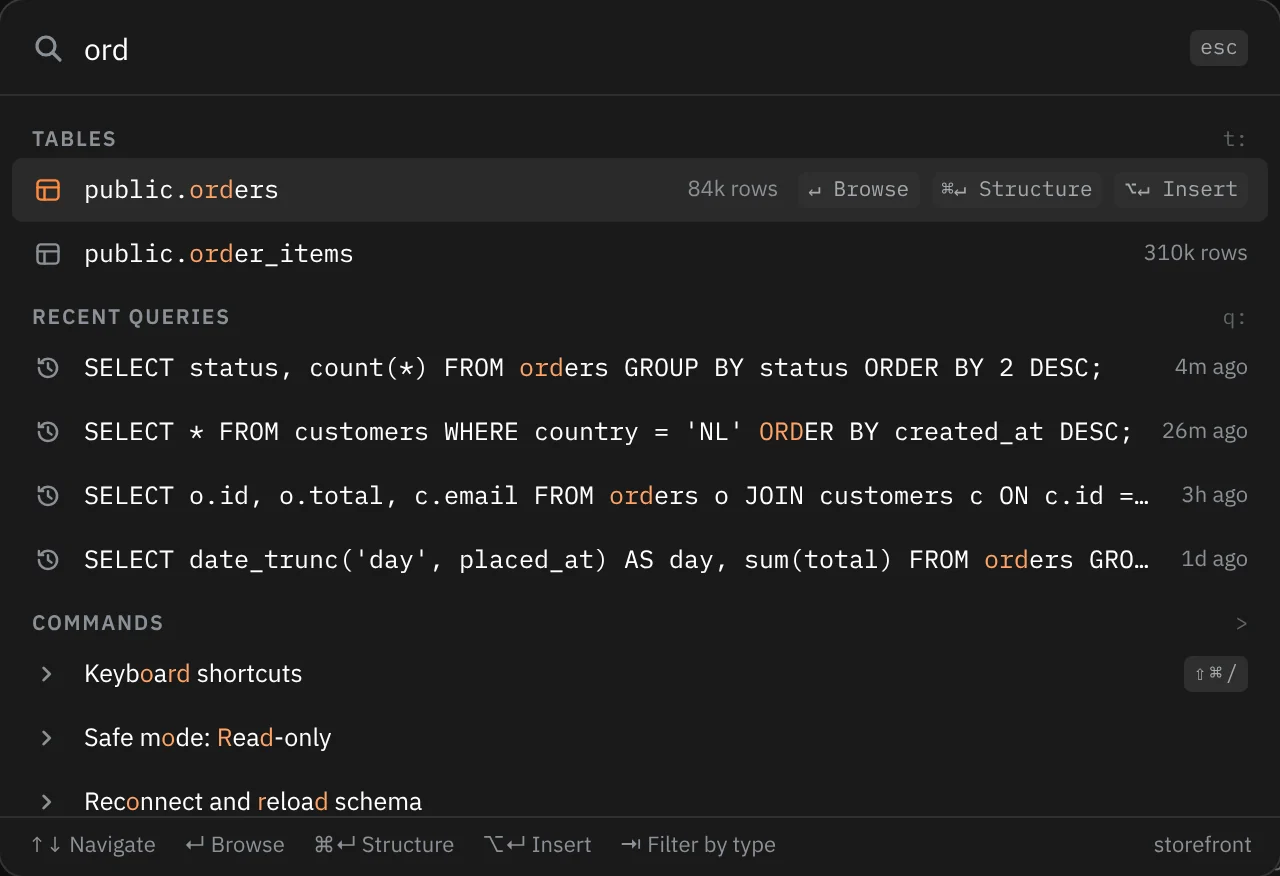
Type any part of a name. Matching ignores case.
- A run of letters found together beats letters spread out:
ordfindspublic.ordersbefore a name that only has an o, an r and a d somewhere. - A match at the start of a word ranks higher. Words are split at
.,_,-,/and spaces, soitemsfindspublic.order_items. - Matching a whole last segment ranks highest:
usersputspublic.usersabovepublic.users_old. - Letters in order also match when they aren't next to each other:
fjfindsfailed_jobs. - Earlier and shorter matches rank above later and longer ones.
The matched letters are highlighted in each row. Each group shows its best eight matches, and the groups are ordered by their best match, so new tab puts Commands first and orders puts Tables first. When two groups tie, Tables lead, then Commands and Connections, then Recent queries.
Words commands also answer to
Many commands match words that aren't in their title, so you can type what you have in mind. For example:
| Type | To find |
|---|---|
help, keys, hotkeys | Keyboard shortcuts |
theme, dark, light | The Appearance commands |
plan, why is it slow | Explain statement |
kill, locks, blocking, pg_stat_activity | Show sessions |
kill, stuck, force stop | Stop all queries |
save, apply | Commit changes |
revert | Discard changes |
reload, rerun | Refresh rows |
csv, download | Export results… |
closed | Reopen closed tab |
sample, demo, tutorial | Open the sample database |
bug, feedback | Report an issue… |
update, upgrade, version | Check for updates… |
licenses, credits, fonts | Third-party notices |
mcp, claude, agent | The Agents and MCP commands |
present, privacy | Start presenting |
A word like this matches only as written (its letters can't be spread out), and it counts as strongly as the title. When several commands score about the same, the ones you've picked most from ⌘K come first.
Search one group
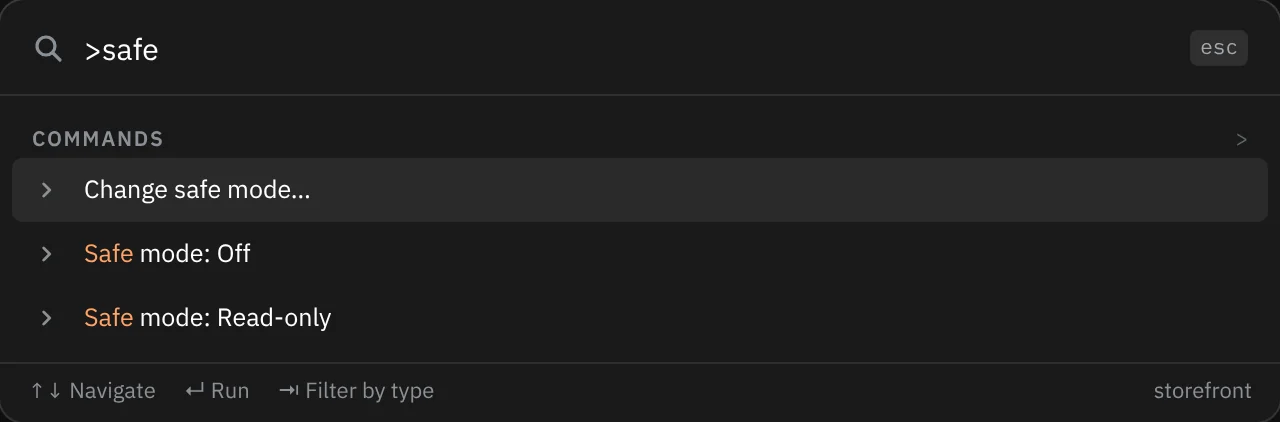
Start with a prefix to search only one group. Each group's heading shows its prefix on the right.
| Prefix | Searches |
|---|---|
t: | Tables, such as t:users |
q: | Recent queries, such as q:select |
> | Commands, such as >new tab |
Connections have no prefix. Press ⇥ instead to step through the groups: All, Tables, Recent queries, Connections, Commands, and back to All (⇧⇥ goes the other way). The group you picked shows as a label in the field. ⌫ in an empty field, or Esc, goes back to All.
A search limited to one group shows up to 60 matches.
Keys in the search
| Key | What it does |
|---|---|
| ↑ ↓, or ⌃N ⌃P | Move the highlight |
| Page Up, Page Down | Move eight rows |
| ↵ | Open the highlighted row (see below) |
| ⌥↵ | Insert the table name or the query's SQL at the caret |
| ⌘↵ | Open a table's Structure |
| ⇥ / ⇧⇥ | Limit the search to the next or previous group |
| Esc | Clear what you typed; then drop the group; then close |
The highlighted row shows the keys that apply to it, and so does the footer. A click works like ↵, and ⌥-click and ⌘-click work like ⌥↵ and ⌘↵.
What ↵ does
| Row | ↵ | ⌥↵ | ⌘↵ |
|---|---|---|---|
| Table | Browse: switches to the table's tab if it's open, otherwise opens it in a tab of its own | Insert its name, quoted only when it needs to be. Tables in public (or SQLite's main) are inserted without the schema | Structure: opens the table on its Structure view |
| Recent query | Open: puts the SQL in a query tab (the current one if it's empty, otherwise a new one) without running it | Insert the whole SQL at the caret | |
| Connection | Switch: this window connects to it | ||
| Command | Run |
On a table tab, ⌥↵ opens the filter editor and inserts the name there, because a table tab has no SQL editor. When you close ⌘K, the focus goes back to the editor unless the command moved it somewhere else.
Paste a connection string or a file path
Paste (or type) into the search field and ⌘K recognises two kinds of text. The row it makes sits above every group, so ↵ takes it straight away.
| You paste | First row | ↵ |
|---|---|---|
A postgres:// or postgresql:// URL, libpq keywords such as host=… dbname=…, a psql -h … -U … line, or a DATABASE_URL=… line | New connection from URL, with the host and database | Opens New connection filled in from it |
A path to a SQLite file: starting with /, ~/ or a drive letter, ending in .sqlite, .sqlite3, .db or .db3 | Open SQLite file, with the path | Opens the file, reusing the saved connection on that path if there is one |
Quotes around the text are ignored. Text that starts with a prefix (t:, q:, >) is always searched as text.

Setting up a connection lists every form a connection string can take.
Commands without a key
Most commands also have a key, a place in the menu bar or both. These have neither, so ⌘K is the quickest way to them. Each one appears only while it can run.
| Command | What it does |
|---|---|
| Set environment: Local (local), Development (dev), Staging (stg), Production (prd) | Tags the window's connection with an environment. See Environments and safe mode |
| Clear environment | Removes the tag |
| Safe mode: Off, Confirm writes, Read-only | Sets the connection's safe mode in one step (Change safe mode… opens the menu instead) |
| Explain with timings | Runs the statement with timings and shows its plan (Postgres). See Query plans |
| All tables as rows | Lists the database's tables as a result you can sort and copy |
| Copy results as TSV, Copy all results as CSV, Copy all results as TSV | Copies rows to the clipboard. While more rows remain unloaded, the first reads Copy loaded 1,000 rows as TSV, and the "all" versions fetch the whole result. See Exporting and copying |
| Discard changes | Throws away a table tab's staged edits, with Undo |
| Timings | Shows how long recent steps took against their budgets |
| Share this connection with agents, Stop sharing this connection with agents | Turns agent sharing on or off for the window's connection |
| MCP activity, MCP access: what agents can reach, Edit MCP access: databases and tables | Open the parts of the Agents page |
| Connect Claude Code or Claude Desktop | Opens Connect an agent |
| Review proposed changes | Opens a change an agent proposed, while one is waiting. See Proposed changes |
| Hide tips | Stops the one-line tips that appear under some controls |
| Reset the sample database | Writes the sample database back to how it started |
Every command
Every command ⌘K can list, with its key on a Mac. Remember that each one shows only while it can run: Cancel query while a query runs, Commit changes while edits are staged, and so on.
| Command | Keys |
|---|---|
| Run statement | ⌘↵ |
| Run all statements | ⌥⌘↵ |
| Format SQL | ⌘I |
| Explain statement | ⌘E |
| Explain with timings | |
| Edit SQL | ⌘E |
| Filter rows | ⌘F |
| Find in results | ⌘F |
| Cancel query | ⌘. |
| Stop all queries | |
| New query tab | |
| Close query tab | ⌘W |
| Next query tab | |
| Previous query tab | |
| Focus editor | |
| Filter schema | / |
| Hide sidebar | ⌘B |
| Show sessions | |
| Start presenting | |
| New connection… | ⌘N |
| Keyboard shortcuts | ⇧⌘/ |
| Show key hints | |
| Settings… | ⌘, |
| Check for updates… | |
| Report an issue… | |
| Third-party notices | |
| Hide tips | |
| Use system window controls (next launch) | |
| Switch connection… | ⇧⌘O |
| Switch database… | ⇧⌘D |
| New window | ⌘T |
| Open a SQLite file… | ⌘O |
| Open the sample database | |
| Reset the sample database | |
| Close window | ⇧⌘W |
| Next window | |
| Previous window | |
| Refresh rows | ⇧⌘R |
| Refresh schema | ⌘R |
| Retry connecting | ⌘R |
| Reconnect and reload schema | |
| Edit connection… | |
| Set environment: Local (local) | |
| Set environment: Development (dev) | |
| Set environment: Staging (stg) | |
| Set environment: Production (prd) | |
| Clear environment | |
| Appearance: match the system | |
| Appearance: light | |
| Appearance: dark | |
| Back | ⌘[ |
| Forward | ⌘] |
| Reopen closed tab | ⇧⌘T |
| Change safe mode… | |
| Safe mode: Off | |
| Safe mode: Confirm writes | |
| Safe mode: Read-only | |
| Share this connection with agents | |
| Stop sharing this connection with agents | |
| MCP activity | |
| MCP access: what agents can reach | |
| Edit MCP access: databases and tables | |
| Connect Claude Code or Claude Desktop | |
| Review proposed changes | |
| Agents | ⇧⌘A |
| Copy results as TSV | |
| Copy results as CSV | |
| Copy all results as CSV | |
| Copy all results as TSV | |
| Export results… | ⇧⌘E |
| Import CSV… | |
| Clear results | |
| Timings | |
| All tables as rows | |
| Show data | ⌥⌘1 |
| Show structure | ⌥⌘2 |
| Show map | ⌥⌘3 |
| Quick Look | Space |
| Insert row | ⌘I |
| Duplicate row | ⌘D |
| Commit changes | ⌘S |
| Review SQL for changes | ⇧⌘P |
| Discard changes |