Get started
Quick setup
Install Rowkery, run your first query on the sample database, then connect your own.
Install the app
Download Rowkery.dmg from the latest release, open it and drag Rowkery into Applications.
The alpha isn't signed by Apple yet, so macOS blocks the first launch. Open System Settings › Privacy & Security and choose Open Anyway, or run this once in Terminal:
xattr -dr com.apple.quarantine /Applications/Rowkery.app
Look around the sample database
The first launch opens a small SQLite database with kiosks, games, players and wallets. Its first query has already run, so you start with rows on screen.
Click a table on the left to browse it. Press Space on a row to see all of it in Quick Look.
Connect your own database
Press ⌘T for a new window. It offers four ways in:
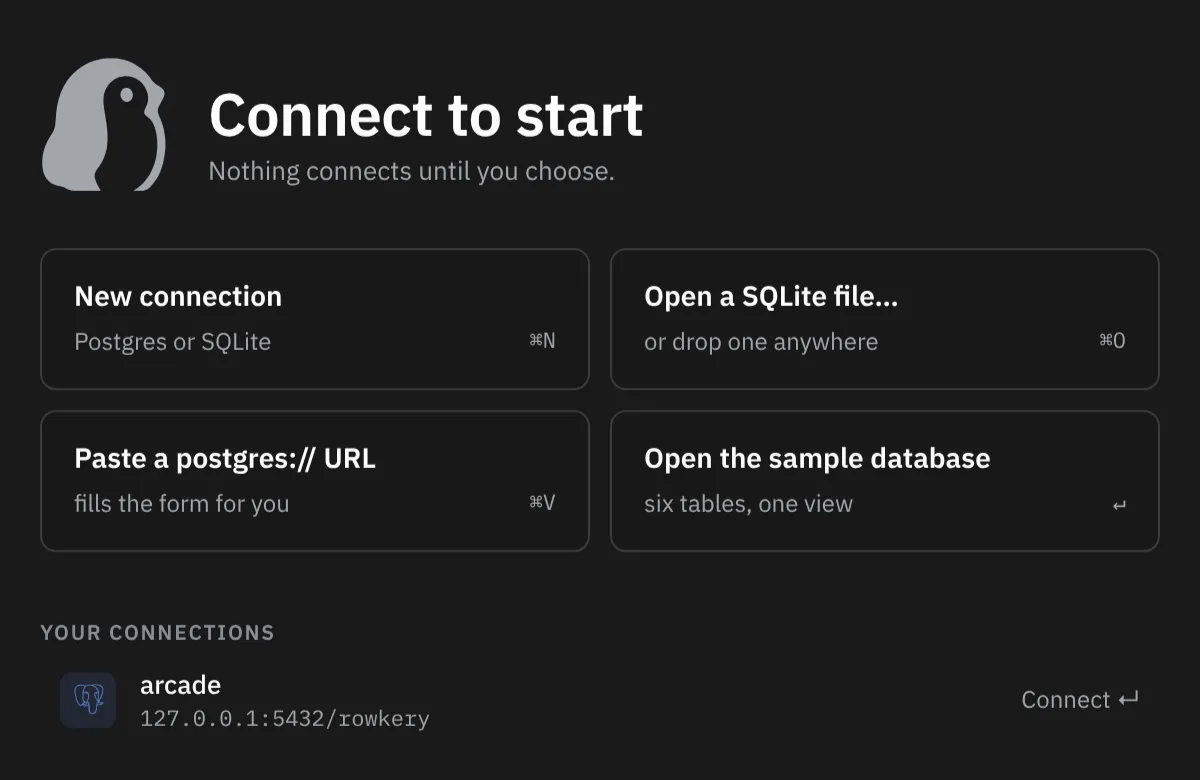
The quickest is to copy a postgres:// URL and press ⌘V anywhere outside a text field. The form opens filled in. Setting up a connection covers every field.
Run a query
Type SQL in the editor and press ⌘↵ to run the statement under the caret, or ⌥⌘↵ to run them all. Esc cancels a query that's taking too long.
SELECT handle, sum(total) AS total
  FROM orders JOIN players ON players.id = orders.player_id
 GROUP BY handle
 ORDER BY total DESC
 LIMIT 10;
Share it with your agent
This step is optional. Open the Agents page with ⇧⌘A, turn sharing on for the connection, and connect Claude Desktop or Claude Code in one click. Connecting to agents has the details.
Updates
Rowkery checks for a new version after launch and installs it the next time you restart the app. Help › Check for Updates… checks right away.
Two keys to remember
- ⌘K finds any table, recent query, connection or command.
- ⇧⌘/ opens the shortcut sheet. Holding ⌘ also shows each control's key right on it.