Keys
Shortcuts and keymaps
Every command in Rowkery has its key printed on the control, in the menu bar, in ⌘K and in the shortcut sheet, all from one list, so they always agree. This page covers where to find the keys, how Rowkery helps you learn them, and the keymaps for people coming from TablePlus or DataGrip.
Keys here are written as a Mac has them. On Linux and Windows, ⌘ is Ctrl, and the few keys that differ more than that are shown in the app itself.
The shortcut sheet
The sheet lists every command that has a key, plus the keys that aren't commands, such as ⇧-click to extend a selection or ⌘1–⌘9 to switch windows. Open it with any of these:
- ⇧⌘/ (that is, ⌘?) from anywhere
- ? while the focus is in the grid or on a row of the schema column (not in a text field, so you can still type a question mark there)
- Help › Keyboard Shortcuts in the menu bar
- The Keyboard shortcuts button (the keyboard) at the foot of the schema column, or All keyboard shortcuts in Settings › Keyboard
- Keyboard shortcuts in ⌘K
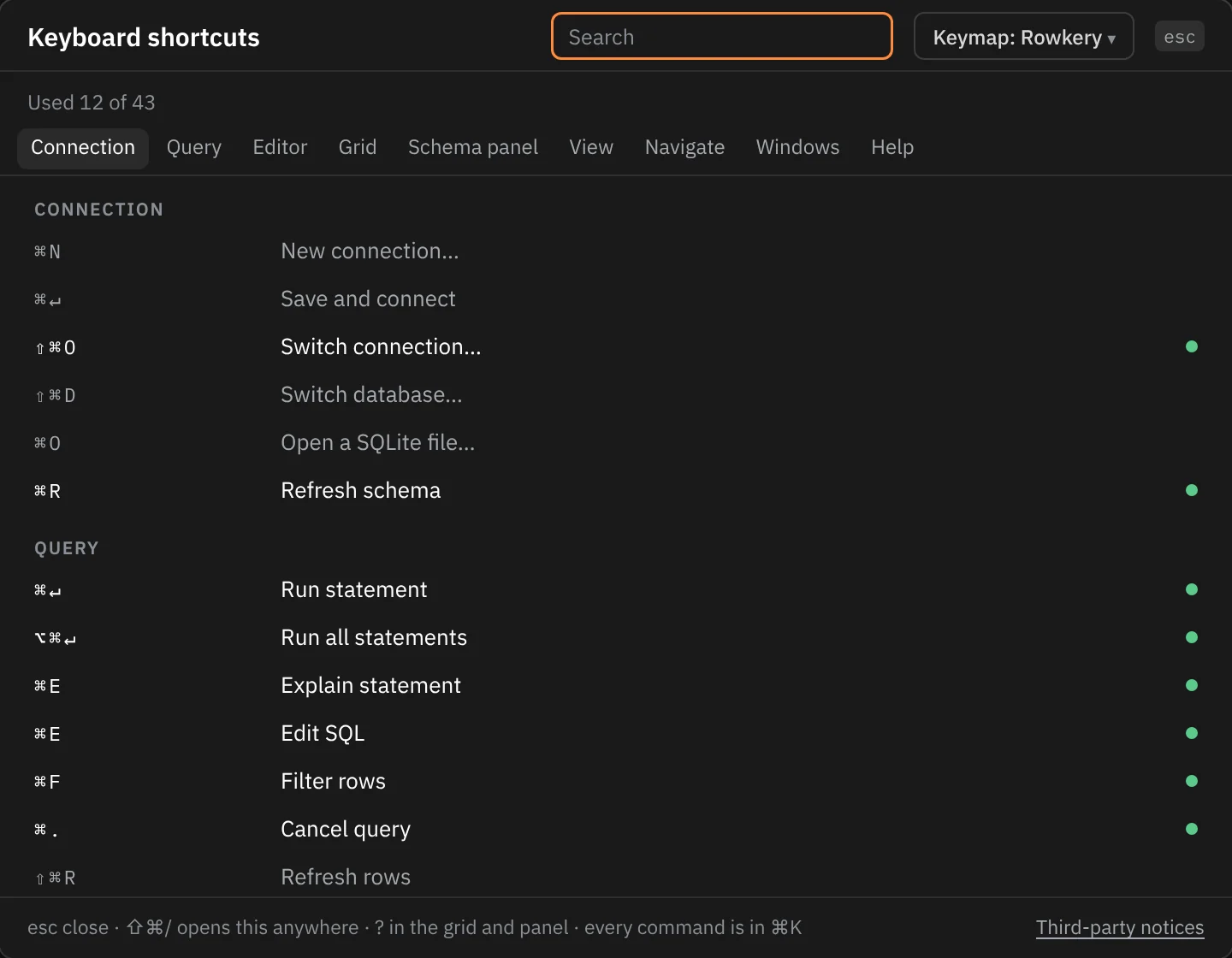
The sections follow the menu bar, then the parts of the window: Connection, Query, Editor, Grid, Schema panel, View, Navigate, Windows and Help. The links along the top jump to a section, and the one you're reading stays highlighted as you scroll.
Find a shortcut
Type in Search at the top of the sheet. It matches the action's name, its keys and the other words ⌘K knows it by, so help finds Keyboard shortcuts and plan finds Explain statement. If nothing matches, the sheet says No shortcut matches.
Esc clears the search first, then closes the sheet. Clicking outside it or the esc button closes it too.
Used n of m
Each command row has a dot. Once you've pressed that command's key, the row reads bright and the dot fills in. Used 12 of 43 at the top counts the commands whose key you've used at least once, out of all the commands with a key.
Only pressing the key counts. Picking the same command from ⌘K or clicking it in a menu doesn't, with one exception: a menu bar item you trigger with its key (with ⌘ held) counts as using the key. The rows for keys that aren't commands have no dot and aren't counted. The counts are kept in Rowkery's config, so they survive a restart.
Key hints while you hold ⌘
Hold ⌘ on its own for a moment (about 0.4 seconds) and a small key label appears beside every control that has a key, and beside each window pill in the title bar (⌘1, ⌘2 and so on).
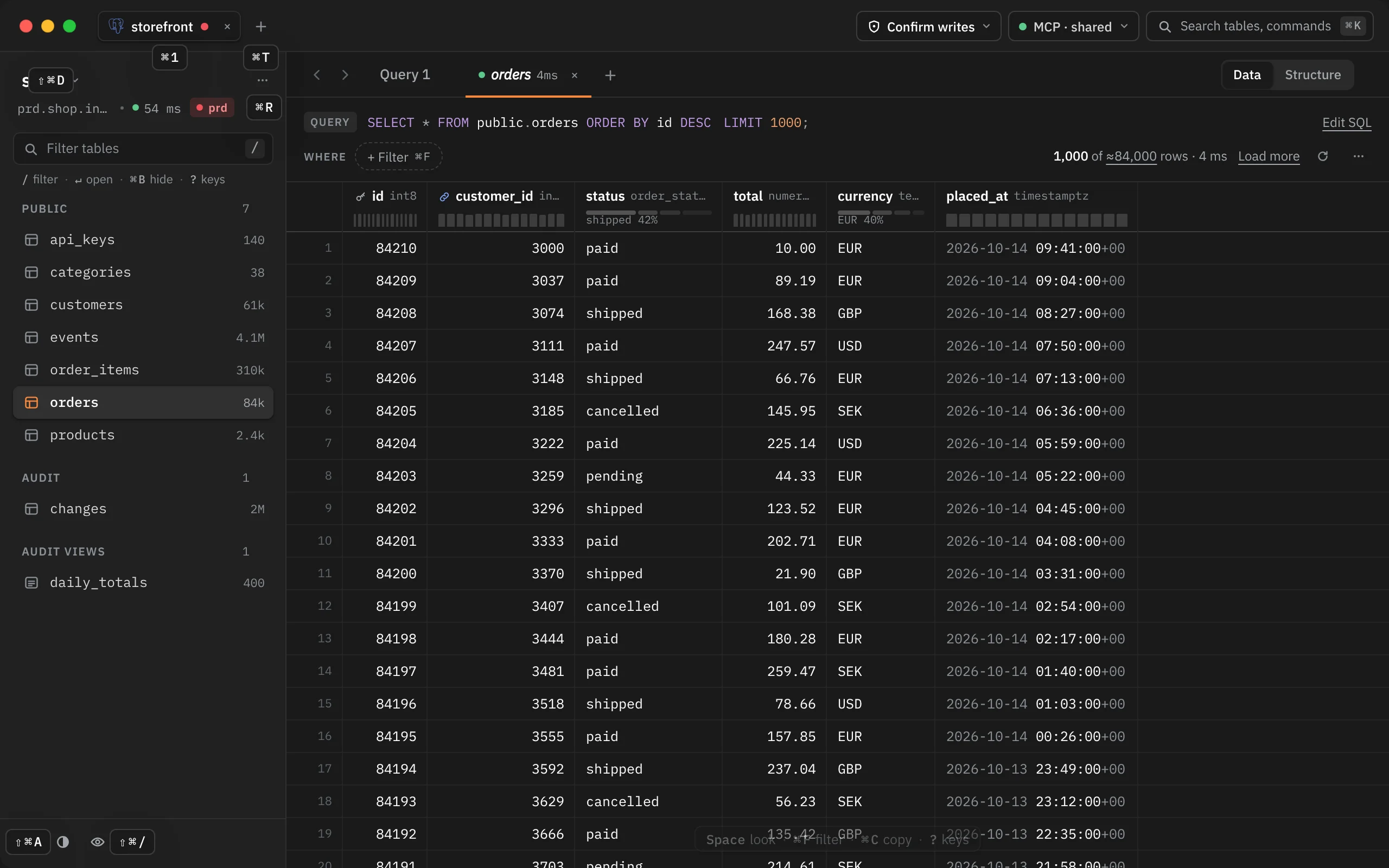
The labels go as soon as you let go of ⌘, press any other key, click, resize the window or switch to another app. Because they wait for the hold, a quick ⌘C or ⌘V never flashes them. A control that's disabled right now, like Back with nowhere to go back to, gets no label. Each label is placed where it doesn't overlap another, and clicks go through to the control underneath.
The key strip
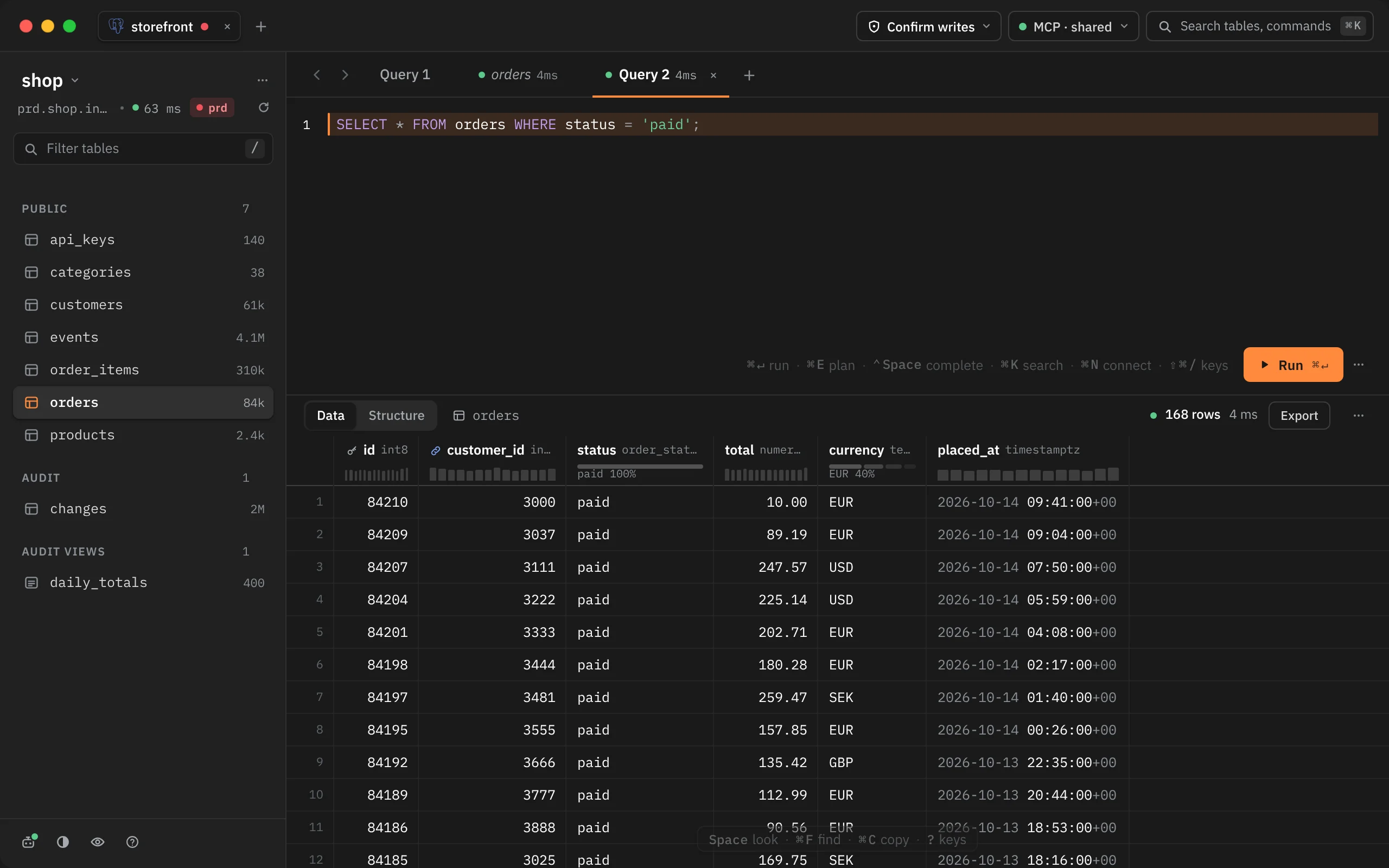
A line of keys sits at the foot of three parts of the window. Each lists only keys that can do something right now.
| Where | When it shows | What it can list |
|---|---|---|
| The editor, left of Run | Always, on a query tab | run (or cancel while a query runs), plan, complete, search, connect, keys |
| The grid's foot | Whenever there's a result, except while the edits bar is up | edit, look, follow, filter (table tabs), find (query tabs), copy, keys |
| The schema column, under Filter tables | While the schema column has the focus | filter, open, hide, keys |
The editor's and the grid's strips stay at half strength until the pointer is on them, and they never go away. The editor's holds up to six keys and the others up to five.
How the schema column's strip retires
The schema column's strip is there to teach. Once you've pressed every key it shows three times, it retires: it disappears and leaves a small keyboard button in its place. To bring it back, click that button, choose Show key hints in ⌘K, or choose Help › Show Key Hints. Presses count again from that moment, so it retires again once you've used each key three more times.
Tooltips
Hover a button and its tooltip names what it does, followed by its key, such as Open a new window ⌘T on the title bar's +. Context menus and the … menus print each item's key on the right. Both read the same list as the sheet, so they change with your keymap.
Tips
Rowkery has five one-line tips, each shown under the control it's about once you've done something enough times to need it:
| Tip | Shows | Goes for good when |
|---|---|---|
| Preview tab reused · ⌘-click a table to keep it | The second time in a session that a schema column click reuses the Preview tab | You keep a table in its own tab |
| Type on a column to filter | After you make your first filter | You start a filter by typing on a column |
| ⌥⌘1 / ⌥⌘2 switch Data and Structure | The third time you click the Data / Structure switch | You use either key |
| Widths are remembered for this table | The second time you drag the same column's width | It has shown once |
| ⌘↵ opens a database in a new window | The third time you open the database picker | You press ⌘↵ or ⌘-click in the picker |
Only one tip shows at a time, at most one a day, and never while a query runs (a tip earned then waits until the query ends). A tip fades after about eight seconds without being retired, so it can come back another day.
To turn tips off, choose Hide tips in ⌘K. There is no command to turn them back on. Hide tips doesn't affect the key strip or the key hints.
Keymaps
If your hands already know TablePlus or DataGrip, pick its keymap. A keymap changes only the handful of keys that clash with that app's habits, such as ⌘T for a new tab instead of a new window. Every other key stays as it is.
Open the picker
Open the shortcut sheet (⇧⌘/) and click Keymap: Rowkery at the top.
Choose one
Pick Rowkery, TablePlus or DataGrip. Each shows how many keys it changes.
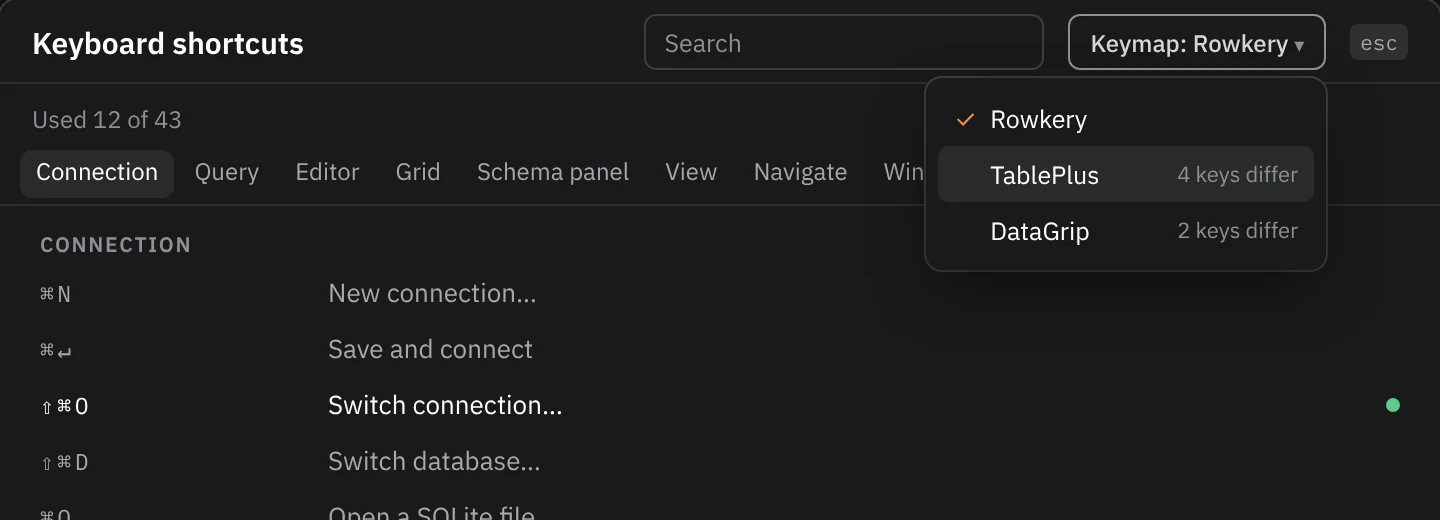
The change applies at once everywhere: the sheet, ⌘K, the menu bar, tooltips, the key strip and the tips. In the sheet, a key the keymap changed is marked with a dot after it. Your choice is saved, so it holds after a restart.
These are the keys each keymap changes:
| Keymap | Action | Rowkery | This keymap |
|---|---|---|---|
| TablePlus | New query tab | ⌘T | |
| New window | ⌘T | ⌥⌘T | |
| Show data | ⌥⌘1 | ⌃⌘[ | |
| Show structure | ⌥⌘2 | ⌃⌘] | |
| DataGrip | New query tab | ⇧⌘L | |
| Refresh schema | ⌘R | ⌥⌘Y |
For example, with TablePlus, ⌘T opens a query tab, and New window moves to ⌥⌘T.
The menu bar
Rowkery's own menus sit between the system's. The Rowkery menu has About, Services, Hide, Hide Others and Quit, and Edit has Undo, Redo, Cut, Copy, Paste and Select All, as in any Mac app. View also ends with Enter Full Screen, and Window starts with Minimize and Zoom.
| Menu | Items |
|---|---|
| Rowkery | Check for Updates…, Settings… ⌘, |
| File | New Query Tab, Reopen Closed Tab ⇧⌘T, Import CSV…, Close Tab ⌘W |
| Edit | Format SQL ⌘I |
| Connection | New Connection… ⌘N, Open SQLite File… ⌘O, Open the Sample Database, Switch Connection… ⇧⌘O, Switch Database… ⇧⌘D, Edit Connection…, Change Safe Mode…, Refresh Schema ⌘R, Reconnect |
| Query | Run Statement ⌘↵, Run All Statements ⌥⌘↵, Cancel Query ⌘., Stop All Queries, Edit SQL ⌘E, Filter Rows ⌘F, Refresh Rows ⇧⌘R, Copy Results as CSV, Export Results… ⇧⌘E, Clear Results |
| View | Hide Sidebar ⌘B, Start Presenting, Data ⌥⌘1, Structure ⌥⌘2, Map ⌥⌘3, Sessions, Match System Appearance, Light Appearance, Dark Appearance |
| Go | Back ⌘[, Forward ⌘], Next Query Tab, Previous Query Tab, Focus Editor |
| Window | New Window ⌘T, Close Window ⇧⌘W, Next Window, Previous Window, Agents ⇧⌘A |
| Help | Keyboard Shortcuts ⇧⌘/, Show Key Hints, Report an Issue…, Third-party Notices |
An item that can't run right now is greyed out, never hidden. A few items change their name with the situation: Close Tab reads Close Window when the window is what ⌘W would close, and Hide Sidebar and Start Presenting flip to Show Sidebar and Stop Presenting. The keys shown in the menus follow your keymap.
Keys without a modifier, such as / to filter the schema, are left out of the menu bar so they keep typing normally in text fields.
Every shortcut
The full contents of the shortcut sheet with the Rowkery keymap. Commands that share a key, like ⌘E for Explain statement on a query tab and Edit SQL on a table tab, never apply in the same place.
Connection
| Action | Keys |
|---|---|
| New connection… | ⌘N |
| Save and connect | ⌘↵ |
| Switch connection… | ⇧⌘O |
| Switch database… | ⇧⌘D |
| Open a SQLite file… | ⌘O |
| Refresh schema | ⌘R |
Query
| Action | Keys |
|---|---|
| Run statement | ⌘↵ |
| Run all statements | ⌥⌘↵ |
| Explain statement | ⌘E |
| Edit SQL | ⌘E |
| Filter rows | ⌘F |
| Cancel query | ⌘. |
| Refresh rows | ⇧⌘R |
| Export results… | ⇧⌘E |
Editor
| Action | Keys |
|---|---|
| Complete at the caret | ⌃Space |
| Format SQL | ⌘I |
| Expand * into the column list | ⇥ after * |
Grid
| Action | Keys |
|---|---|
| Quick Look | Space |
| Edit cell | ↵ |
| Set NULL | ⌥⇧N |
| Delete row | ⌫ |
| Commit the held write | ⇧⌘↵ |
| Follow foreign key | ⌘↵ |
| Remove filter | ⌫ |
| Insert row | ⌘I |
| Duplicate row | ⌘D |
| Commit changes | ⌘S |
| Review SQL for changes | ⇧⌘P |
| Copy the cell, or the block as CSV | ⌘C |
| Copy the block with column names | ⇧⌘C |
| Select the whole result | ⌘A |
| Extend the selection | ⇧-click ⇧↑↓←→ |
| Select whole rows | drag row numbers |
| Count the rows exactly | # |
| Discard pending edits (Undo in the toast) | esc |
Schema panel
| Action | Keys |
|---|---|
| Filter schema | / |
| Insert name | ⌥↵ |
| Browse the table | ↵ |
| Open a table in its own tab | ⌘-click |
View
| Action | Keys |
|---|---|
| Hide sidebar | ⌘B |
| Show data | ⌥⌘1 |
| Show structure | ⌥⌘2 |
| Show map | ⌥⌘3 |
| Map: move between tables | ↑↓←→ |
| Map: centre on the table | Space |
| Map: open the table (⌘↵ in its own tab) | ↵ ⌘↵ |
Navigate
| Action | Keys |
|---|---|
| Search tables, queries and commands | ⌘K |
| Find in results | ⌘F |
| Close query tab | ⌘W |
| Retry connecting | ⌘R |
| Edit the failed connection… | ⌘E |
| Back | ⌘[ |
| Forward | ⌘] |
| Reopen closed tab | ⇧⌘T |
Windows
| Action | Keys |
|---|---|
| New window | ⌘T |
| Close window | ⇧⌘W |
| Agents | ⇧⌘A |
| Switch to window 1–9 | ⌘1–9 |
| Filter tables in Edit access | ⌘F |
Help
| Action | Keys |
|---|---|
| Keyboard shortcuts | ⇧⌘/ |
| Settings… | ⌘, |
| Keyboard shortcuts, from the grid or panel | ? |