Working with data
Table tabs and filters
Clicking a table opens it in a table tab: its rows in a grid, the exact SQL that fetched them, and a WHERE line where you build filters without writing SQL. This page covers opening tables, filtering, sorting, columns, paging, and the Structure and Map views.
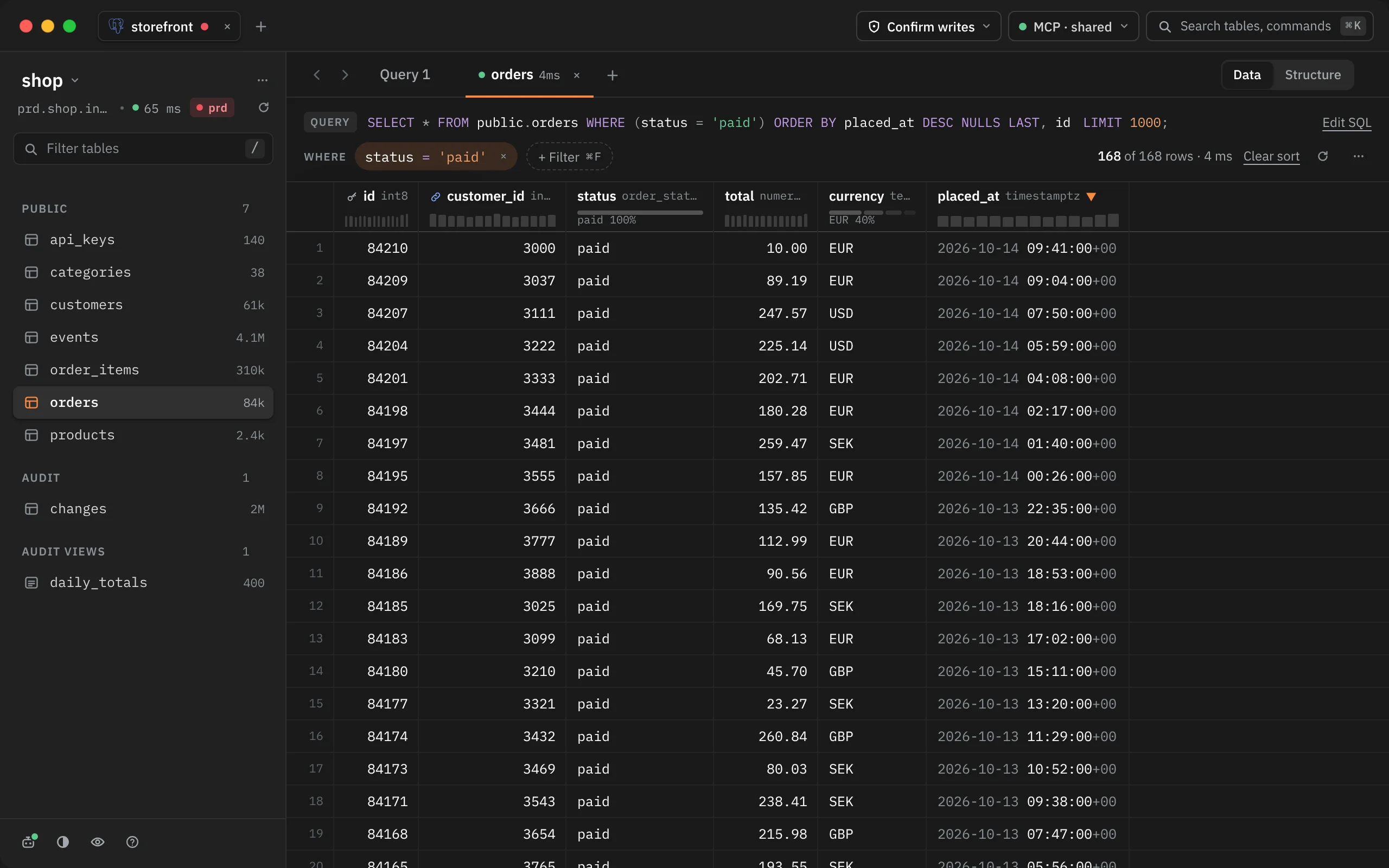
Opening a table
The schema column on the left lists the database's tables and views with an estimate of their row count (shown as 140, 61k, 4.1M). With one schema you see Tables and Views; with several, each schema gets its own section, plus one for its views. Click a section's title to fold it.
| Do this | What happens |
|---|---|
| Click a table | Opens it in the preview tab, which the next click reuses |
| ⌘-click, or double-click the table | Opens it in a tab of its own |
| ↵ on a focused row | Browses the table |
| Search with ⌘K | Type part of the name and press ↵; it opens in a tab of its own |
Right-click a table for Open, Open in a new tab, Structure, Insert name ⌥↵, Copy name and Pin to top. Pinned tables sit in a Pinned section at the top; Unpin puts them back.
A materialized view carries a mat tag. A partitioned table shows how many parts it has, with a disclosure to list them.
Finding a table
Press / to jump to Filter tables at the top of the column and type part of a name. It matches tables, partitions and views anywhere in the name. Esc clears it. Hide the whole column with ⌘B when you want the room.
The preview tab
A plain click opens the table in a preview tab so that looking through several tables doesn't leave a pile of tabs. The next click replaces it. The tab becomes a normal one, and stays, as soon as you work in it: add a filter, sort, change the page size, hide a column, load more rows or edit a cell.
To keep a preview tab without changing anything, double-click its tab or right-click it and choose Keep open.
Going back and forward
⌘[ and ⌘], or the ‹ and › buttons at the left of the tab row, walk back and forward through the tables, Structure and Map views you opened in this window (re-centring a map is a step too). Each step comes back with the filters, sort and page size it had. Right-click ‹ to see the list and jump to any entry. The history keeps the last 50 places and lasts until you close the window.
The tab's menu
Right-click a table tab for Keep open (on a preview tab), Edit SQL ⌘E, Refresh rows ⇧⌘R, New query tab, Close tab ⌘W, Close other tabs and Reopen closed tab ⇧⌘T.
The query line
The QUERY line at the top of the tab shows the exact SQL that fetched the first page: the column list, your filters as a WHERE clause, the sort as ORDER BY, and the LIMIT. When a table has 40 columns or more, the column list folds to a count. A clause you change by clicking (a sort, a filter) is briefly highlighted, so you can see what your click did to the SQL.
The LIMIT number is also the page size control. Click it to choose 1000 rows, 5000 rows or All rows.
Edit SQL ⌘E opens a new query tab with exactly this SQL, without running it. Use it when you want to take a filtered view further by hand. See Query tabs.
The WHERE line
Under the query line, the WHERE line holds your filters, joined by AND, and + Filter ⌘F. On its right:
| Item | What it tells you |
|---|---|
| Row count | 1,000 of ≈84,000 rows while more remain, or 168 of 168 rows once everything is loaded |
| Time | How long the query took |
| Load more | Fetches the next page now |
| Clear sort | Puts the rows back in key order |
| ↻ | Refresh rows ⇧⌘R: runs the table's query again |
| … | More for these results: insert a row, copy, export, clear, timings |
While the query runs, the line reads Running with the time and a Cancel button. Esc or ⌘. cancels it.
Counting rows exactly
The number after ≈ is the database's own estimate, shown only when there's no filter (with a filter it reads ≈?). Click it, or press # in the grid, to count exactly. The line reads Counting… with a Cancel button, then shows the exact total. Refresh drops an exact count, since the rows may have changed.
Totals for a selection
Select two or more cells in a table tab and the WHERE line shows how many you selected with their sum and average, such as 6 cells · sum 727.85 · avg 121.31. See Exporting and copying.
Filtering rows
Filters run on the server, so they search the whole table and not only the rows you've loaded. Each one you add appears on the WHERE line and in the QUERY line's WHERE clause.
Adding a filter with ⌘F
Press ⌘F, or click + Filter. An editor opens in the WHERE line with three parts: the column (any text column to start), the operator, and the value, which has the focus. Press ↵ or Add to apply it, Esc to cancel.
In the column and operator lists, type the first letters of a name to jump to it, and press ↵ to pick it. Typing the same letter again moves to the next one that starts with it.
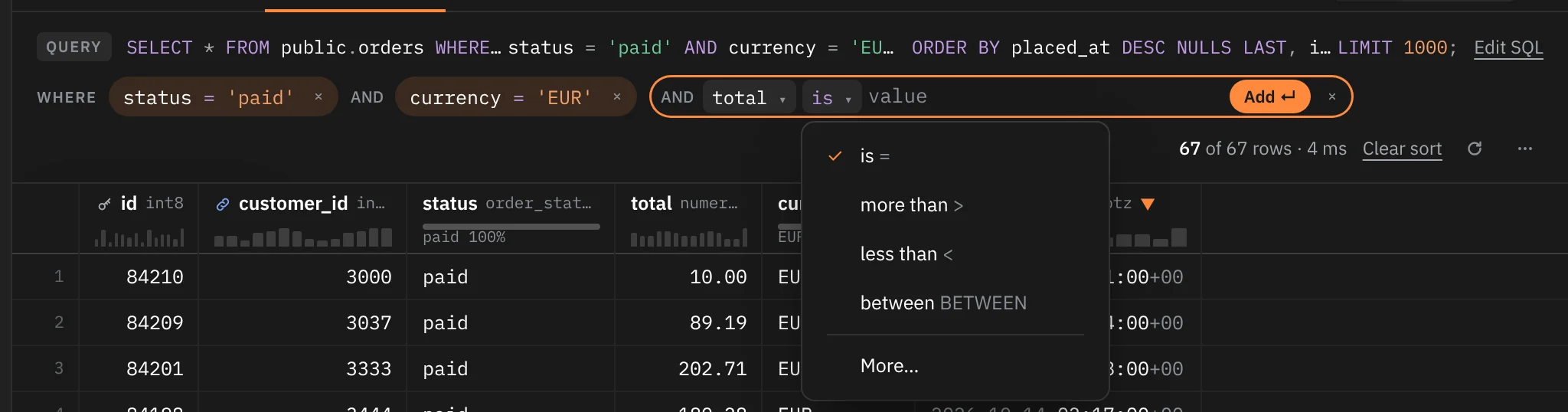
You can type a whole filter in the value box, which is often quicker than picking:
status = paidfilters one column. You don't need quotes; Rowkery writes the literal for the column's type.- A plain word with any text column chosen searches every text column at once (an OR of
ILIKEmatches). - Any other SQL expression is kept as one filter, written exactly as you typed it.
The value box completes column names and values as you type. If you misspell a column, a toast says No column and offers the closest one, such as Use status.
Operators
The operator list shows the four most useful for the column's type first (for text: contains, is, is not or empty, is empty; for numbers and times: is, more than, less than, between), then More… for the rest. A text column starts on contains; every other type starts on is.
| Operator | SQL it writes |
|---|---|
| is | = |
| is not | <> |
| is not, or empty | IS DISTINCT FROM (keeps NULL rows) |
| more than | > |
| less than | < |
| at least | >= |
| at most | <= |
| contains | ILIKE on Postgres, LIKE on SQLite |
| one of | IN, values separated by commas |
| between | BETWEEN, a low and a high value |
| is empty | IS NULL |
| is not empty | IS NOT NULL |
Filtering from a cell
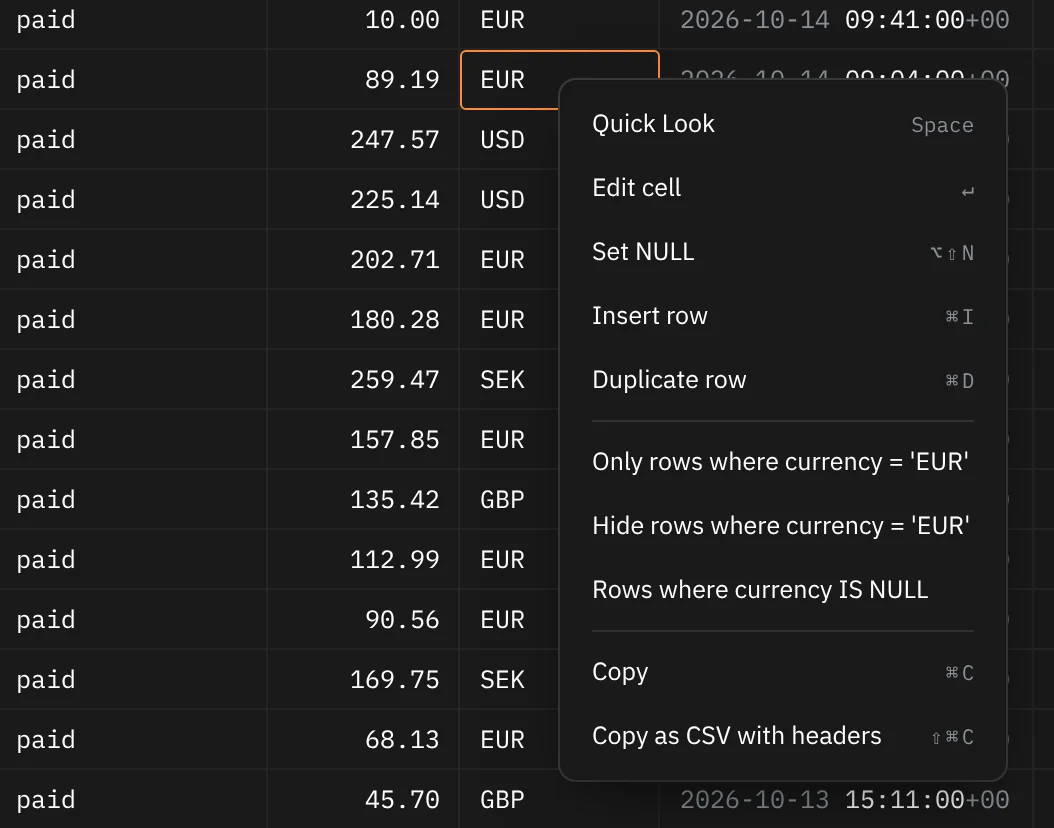
Right-click a cell for filters built from its value:
- Only rows where the column equals this value.
- Hide rows where the column equals this value. It writes
IS DISTINCT FROM, so rows where the column is NULL stay visible. - Rows where the column
IS NULL. Not offered for columns that can't be NULL.
On a NULL cell the choices are Rows where … IS NULL and Hide rows where … IS NULL.
Filtering from a column's profile
Under each column name is a small profile of its values, computed from the first 5,000 rows: a bar of the most common values, or a histogram. Click a value's segment to show only rows with that value. Drag across histogram bars to filter to that range with BETWEEN.
Editing and removing filters

- Click a filter to edit it in place.
- Click its × to remove it, or focus it and press ⌫.
- Right-click it for Edit filter, Remove filter, Copy as SQL, Add a filter and, with two or more, Remove all filters.
When a filter matches nothing, the grid says No rows match with a Clear filters button.
Typing to filter
Once a tab has at least one filter, you can start typing in the grid and the filter editor opens with what you typed. Before that first filter, typing doesn't open it (the WHERE line reminds you: ⌘F filters · typing filters after your first filter), so a stray key never hides your rows. ?, #, / and Space keep their own jobs and never start a filter.
Sorting
Click a column's header to sort by it on the server. Clicks cycle through ascending, descending and off. Clicking another column sorts by that one alone. ⇧-click adds a column as a secondary sort; each sorted header shows its direction, and a number when there's more than one.
Rows always come back in a stable order: after your sort columns, the table's primary key decides ties. NULL values in a sorted column go last.
Clear sort on the WHERE line, or in the header's menu, returns to key order.
Columns
Right-click a header for:
| Item | What it does |
|---|---|
| Sort ascending / Sort descending / Clear sort | Sorts on the server |
| Secondary sort | Same as ⇧-click |
| Filter by this column ⌘F | Opens the filter editor on this column |
| Hide column | Hides it from the grid and the SQL; a toast offers Undo |
| Copy column name | Copies the name |
| Structure ⌥⌘2 | Opens the table's Structure view |
| Mark as sensitive | Hides its values while presenting. See Sensitive columns and presenting |
Each header shows the column's type next to its name, a key icon on the primary key and a link icon on a foreign key.
Hidden columns
A hidden column leaves the SELECT list, so it isn't fetched at all. A small grip in the header row marks where hidden columns are; click it to Show one of them or Show all hidden columns. A table tab always keeps at least one column.
Column widths
Drag a column's edge to resize it. Rowkery remembers the widths you set for that table, in every window.
Paging
A table tab loads 1,000 rows at a time. Scroll near the end and the next page loads on its own, or click Load more. Choose 5000 rows or All rows from the LIMIT on the query line to change the page size.
Pages are read by key: each one continues after the last row of the page before, using your sort columns and the primary key. Every row has exactly one place, so a row never appears twice or gets skipped while you scroll. A table without a primary key pages with OFFSET instead, and the row count's tooltip says so.
A tab stops at 1,000,000 rows and tells you Stopped at 1,000,000 rows. To work with more than that, filter first or export the whole result.
Structure
Switch a table tab between Data, Structure and Map with the buttons at the right of the tab row, ⌥⌘1, ⌥⌘2 and ⌥⌘3. With the TablePlus keymap Data and Structure are ⌃⌘[ and ⌃⌘], and Map stays ⌥⌘3 (see Shortcuts and keymaps). A table you open from the sidebar starts in the view the last table showed, so after looking at one table's Structure the next one opens in Structure too.
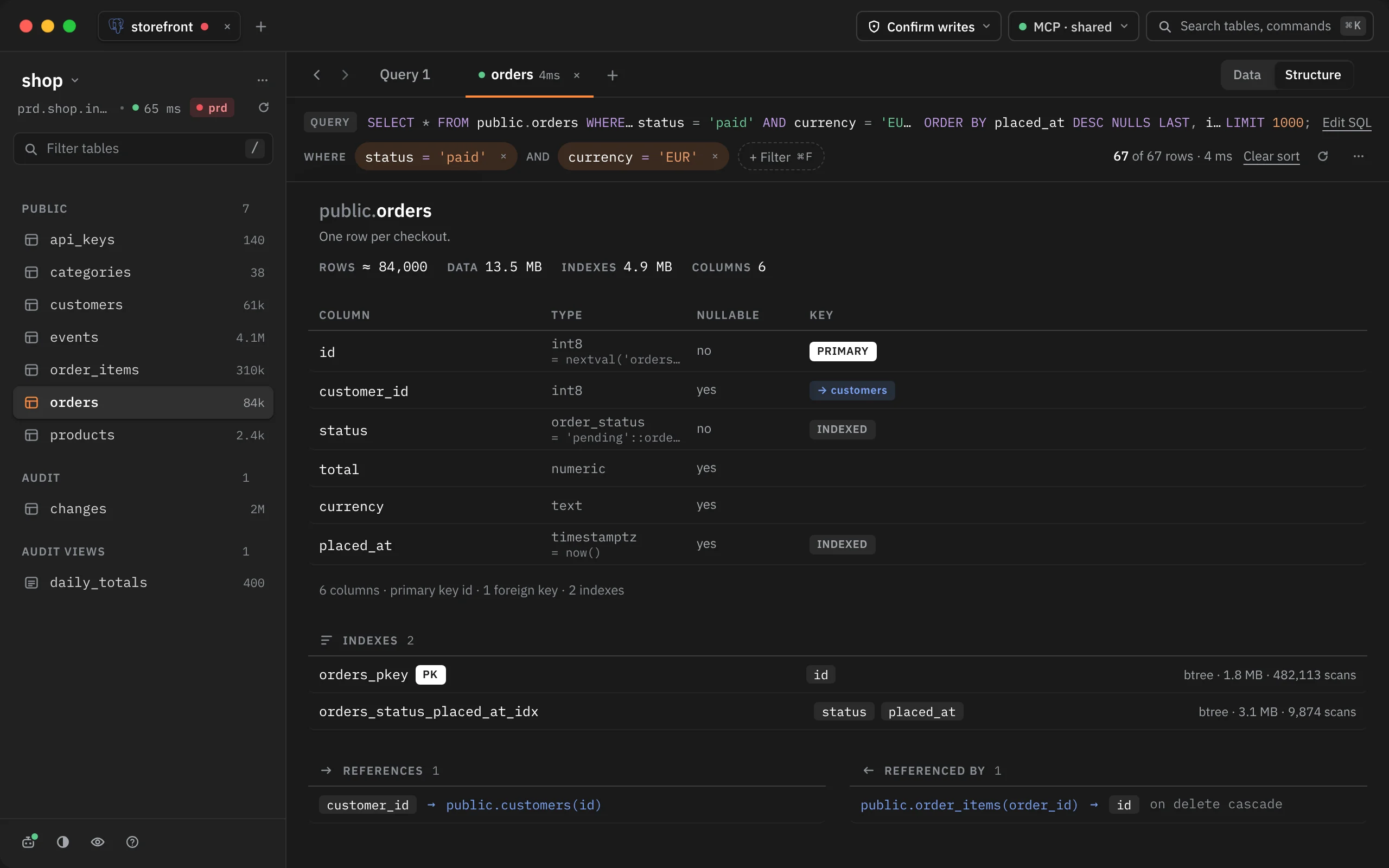
Structure shows:
- The table's name and its comment, if it has one.
- Rows (the estimate), Data and Indexes sizes, Columns, and Partitions for a partitioned table.
- Each column with its type, default, whether it can be NULL, and its key: PRIMARY, UNIQUE, INDEXED, or a link to the table a foreign key points at. Column comments appear under the name.
- Indexes, with PK, UNIQUE and Unused tags. On Postgres each index also shows its method, size and how many times it has been scanned since the statistics were last reset. An index with no scans that isn't a primary key or unique shows as Unused.
- References (this table's foreign keys) and Referenced by (other tables' keys that point here), with their on delete rule. Click a table's name, here or in the Key column, to open it.
- Partition of, for a partition, with a link to its parent.
SQLite doesn't report index methods, sizes or scan counts, so those are left out there.
Map
Map (⌥⌘3, or Show map in ⌘K) draws the table with its neighbours: the tables it points to on the left, the tables that point to it on the right. It is built from the foreign keys Rowkery already knows, so it opens at once and runs no query.
- Each box lists the table's row estimate and its key columns only: the primary key, foreign keys, and columns another table points at. A composite key lists every column.
- Each line is marked 1 at the table pointed to and n at the table pointing (1 when the key is that table's whole primary key). Hover a line to see the key, such as
orders.customer_id → customers.id · on delete cascade. - 1 step is the default. 2 steps reaches one table further on each side and dims the second step; All follows the keys as far as they go, and is off when the database has more than 150 tables. The choice is kept for the database: every table of it, and a tab you close and reopen, shows the same reach.
- A table that points to itself, such as
parent_id, loops back into its own box. A line within one column, or one that would cross the centre, is left out; Structure lists it. - Guess links draws keys your app keeps only in its models, such as Laravel's
belongsTo, where the database has no foreign key. A column likecustomer_idis linked tocustomers(orcustomer) in the same schema when that table has a one-column primary key; plurals follow simple English rules, soperson_idwon't findpeople. Guessed lines are dashed, and hovering one says it was guessed from the name. A polymorphic pair (commentable_idwithcommentable_type) is left alone. The switch is off by default and the same for every connection. The ? next to it says what it does.
| Do this | What happens |
|---|---|
| Click a box | Centres the map on that table |
| Double-click a box, or ↵ | Opens the table |
| ⌘↵ | Opens the table in a tab of its own |
| Arrow keys | Move between boxes |
| Space | Centres the map on the box with the ring |
| Esc | Goes back to Data |
| ⌘[ / ⌘] | Steps back and forward through the tables you centred on |
Following a foreign key
On a foreign key cell, press ⌘↵ or right-click and choose Follow with the column's name, such as Follow customer_id. The table it points at opens in the preview tab, filtered to that one row, with Quick Look open on it. See Quick Look for following keys from the row itself.
Hover prefetch
Prefetch on hover makes a click on a table show its rows at once. With it on, resting the pointer on a table in the schema column for a moment reads its first 200 rows in the background, so the click finds them ready.
It's off by default. Turn it on for one connection under Advanced › Prefetch on hover in the connection's form (Postgres only). It uses its own session, so it never waits behind or interferes with your queries. It skips views, partitioned tables, tables without a primary key or unique index, and tables already open in a tab. Moving the pointer away cancels it, and any write in the window drops what it read.
What a table tab remembers
Each table tab keeps its filters, sort, page size, hidden columns, Data, Structure or Map view, and any edits you haven't committed. They're saved with the window, so after you quit and reopen Rowkery the tab comes back as you left it.