Connections
Google Cloud SQL
Rowkery connects to a Postgres instance on Google Cloud SQL by itself, the way the Cloud SQL Auth Proxy does, so there's no proxy to download, start or stop. You pick your Google account and the instance once, and every window opens the secure link when it connects and closes it when it's done.
How it works
When a window connects, Rowkery asks Google's Cloud SQL Admin API for the instance's address and a client certificate that lasts an hour, then opens a TLS connection straight to the instance on port 3307. Postgres runs inside that connection. The certificate's private key is made on your Mac when Rowkery starts and never leaves it.
- No local port. Nothing listens on your Mac, so no other program can use the link.
- No authorized networks. Google checks the client certificate instead of your IP address, so you don't need to add your Mac's address to the instance.
- Nothing to tear down. The link closes with the window's last session, and a new certificate is fetched when the old one is about to run out.
The windows, background prefetch and the MCP server all use it the same way, so a Cloud SQL connection you share with an agent works like any other.
What you need
| The instance | A Postgres instance. MySQL and SQL Server instances aren't offered |
| Cloud SQL Admin API | Turned on in the instance's project, as it is for the Auth Proxy. It's under APIs & Services in the Google Cloud console |
| A Google account | Your gcloud login, or a service account key, with the Cloud SQL Client role (roles/cloudsql.client) on the instance's project |
| A database user | A Postgres user and password on the instance. Signing in to the database with your Google account (IAM database authentication) isn't supported yet |
| A route to the instance | For a public IP, nothing more. A private IP or Private Service Connect address only answers from inside its network, so connect your VPN first |
Set it up
- Press ⌘N for New connection and pick Postgres.
- Under Connect to, pick Google Cloud SQL.
- Check the Google account. Rowkery uses your gcloud login when it finds one.
- Click Instance and pick the instance.
- Fill in Database, User and Password. Rowkery tries the connection once those are set.
- Press Save and connect ⌘↵.
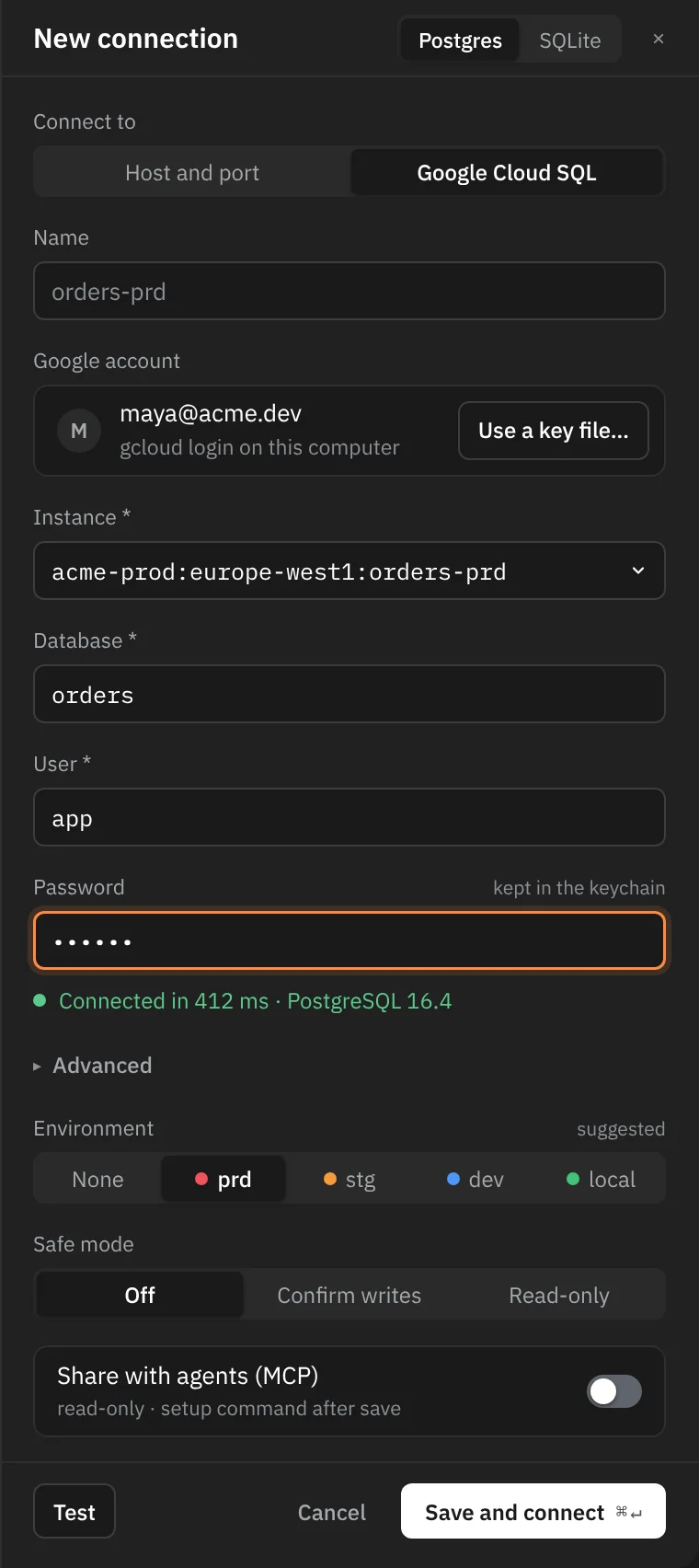
The name defaults to the instance's name, and the environment is suggested from it, so orders-prd is labelled prd.
Host and Port aren't asked for: the instance gives its own address. The schema column shows the instance's name under the connection's.
The Google account
Your gcloud login
Rowkery reads the login that this command makes, the same one the Auth Proxy and Google's client libraries use:
gcloud auth application-default login
Rowkery reads it each time it needs a new token and never copies it. If you sign in again as someone else, the connection follows from its next certificate, within the hour. A login made with --impersonate-service-account works too, and acts as that service account.
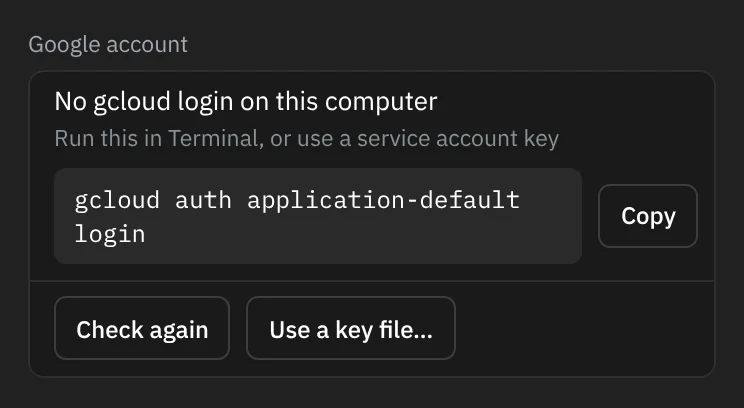
When there's no login on your Mac, the form shows the command with a Copy button. Run it in Terminal, then click Check again.
A service account key
For a connection that shouldn't depend on who's signed in to gcloud, click Use a key file… and choose a service account's JSON key. Rowkery shows the service account's email and, on Save, keeps the key in the connection's keychain item with its password. It doesn't keep the file's path, so you can delete the file afterwards. Only a service account key is taken: gcloud's own login file, chosen here by mistake, is refused.
Use gcloud login switches back, and Save then deletes the key. Workload identity federation files (external_account) aren't supported.
Choosing the instance
The picker lists the Postgres instances in every project your Google account can see, grouped by project. Type to filter. A stopped instance is marked Stopped; Rowkery can't connect to it until it's started again.
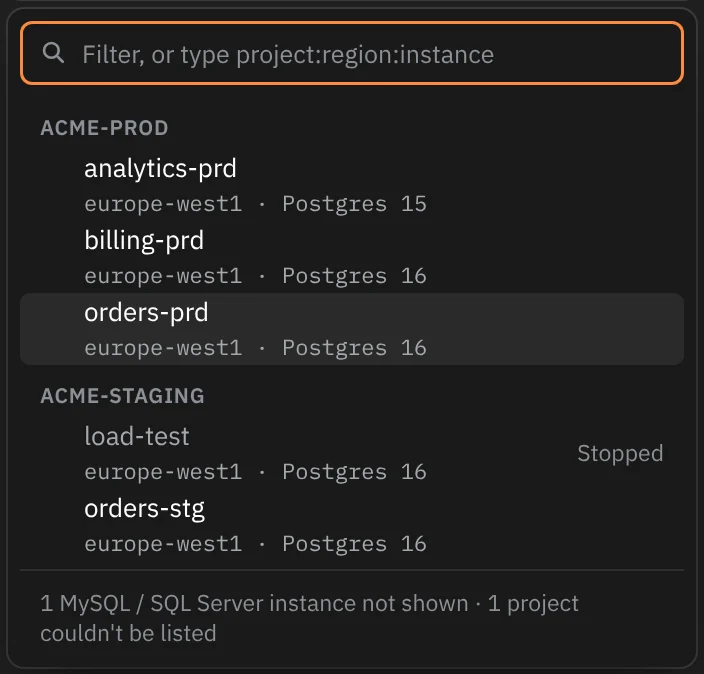
The foot counts the MySQL and SQL Server instances it left out, and the projects it couldn't read. An account in more than 500 projects has only the first 500 searched, and the foot says so; type the connection name for the others.
Typing the connection name
You can also type an instance's connection name, project:region:instance, into the filter and press ↵. It's on the instance's Overview page in the Google Cloud console, under Connect to this instance. Use this when your account can connect to an instance but has no permission to list its project or instances, or when the instance isn't in the list for another reason.
Advanced
| Setting | What it does |
|---|---|
| IP | Which of the instance's addresses to use: Public (the default), Private, or PSC for Private Service Connect |
| SSL | Not a choice for Cloud SQL. The connection is always encrypted, and the instance's certificate must come from the instance's own certificate authority, as the Admin API reports it. When the instance uses Google's shared or a customer-managed authority, the certificate must also carry the instance's DNS name |
An instance set to Require trusted client certificates works, since Rowkery always sends a client certificate. Safe mode, environment and sharing with agents work as for any connection.
When it can't connect
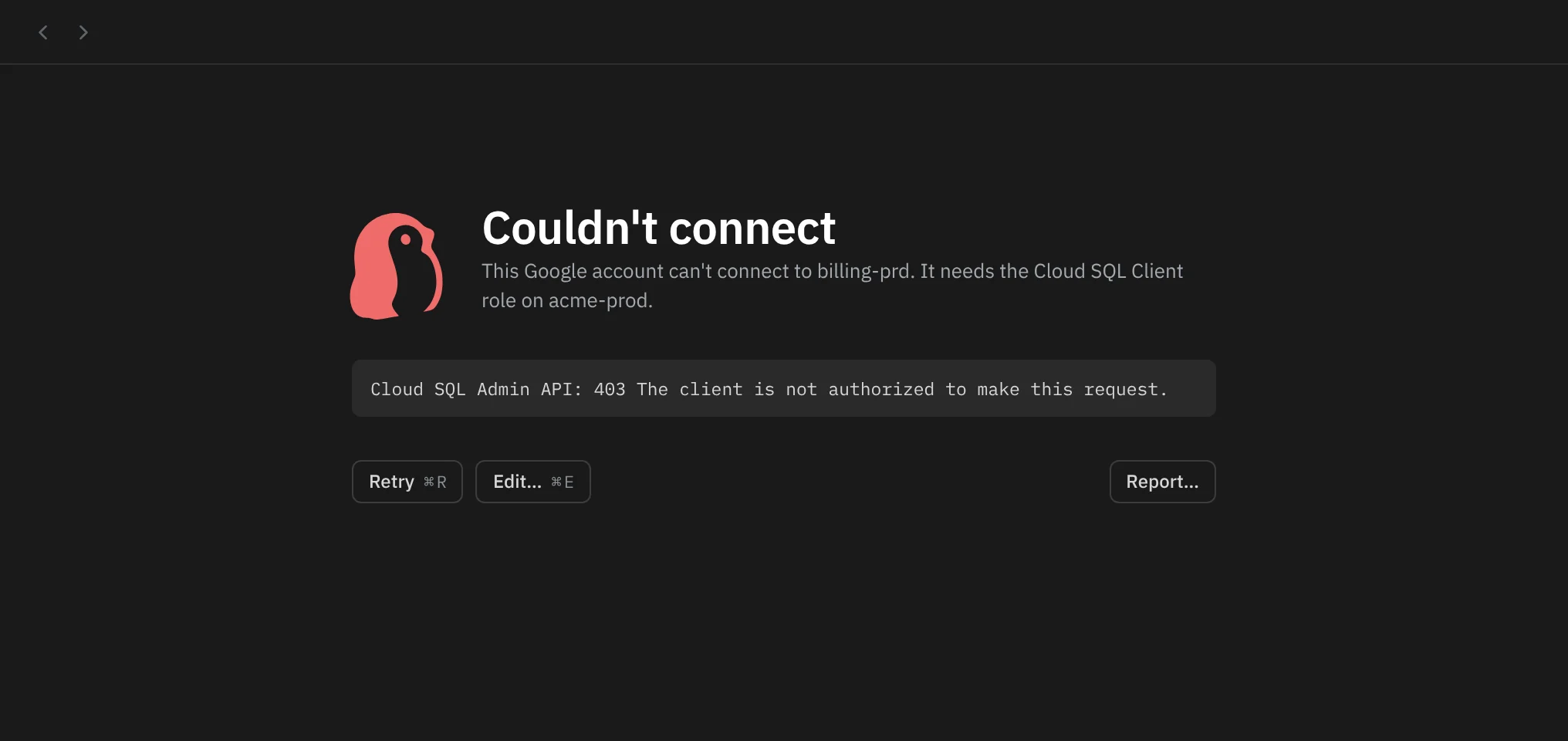
The window shows Couldn't connect with a cause line and Google's own message below it. Edit… ⌘E opens the form with the field to fix marked.
| The cause line says | What to do |
|---|---|
No gcloud login on this computer | Run gcloud auth application-default login, or use a key file |
Google refused the gcloud login | The login has expired or was revoked. Run the command again |
Google refused the service account key | The key was deleted or disabled. Make a new key and choose it with Use a key file… |
It needs the Cloud SQL Client role | The account can't connect to the instance. Ask the project's owner to grant the role to the account the form shows |
The Cloud SQL Admin API is off | Turn the API on in the project. If your gcloud login has a quota project, the API must be on there too |
has no Cloud SQL instance named | Check the connection name, or pick the instance from the list again |
is in REGION, not REGION | The connection name has the wrong region. Copy it again from the instance's Overview page |
runs MySQL 8.0 | Rowkery connects to Postgres instances only |
has no public IP | The instance has no address of that kind. Pick the one it has under Advanced, IP |
Couldn't reach Google | Your Mac is offline, or a proxy or firewall blocks googleapis.com |
didn't answer on port 3307 | A firewall blocks the port, or a private or PSC address needs your VPN. The instance may also be stopped |
The secure connection failed | The instance's certificate didn't check out. Retry; if it keeps failing, the raw error says why |
A wrong database password, user or database name shows the same causes as any Postgres connection; see Troubleshooting.
What Rowkery sends to Google
Only what connecting needs. To sign in, it sends your gcloud login's refresh token or a token signed with the service account's key to Google's sign-in service, and keeps the access token it gets in memory. To connect, it asks the Admin API for the instance's address and sends the public half of its key to have the client certificate signed. The picker also asks Resource Manager for your projects and the Admin API for their instances. Your queries and data go only to the instance, inside the TLS connection. Security and privacy covers the rest of Rowkery's network use.