Working with data
Quick Look
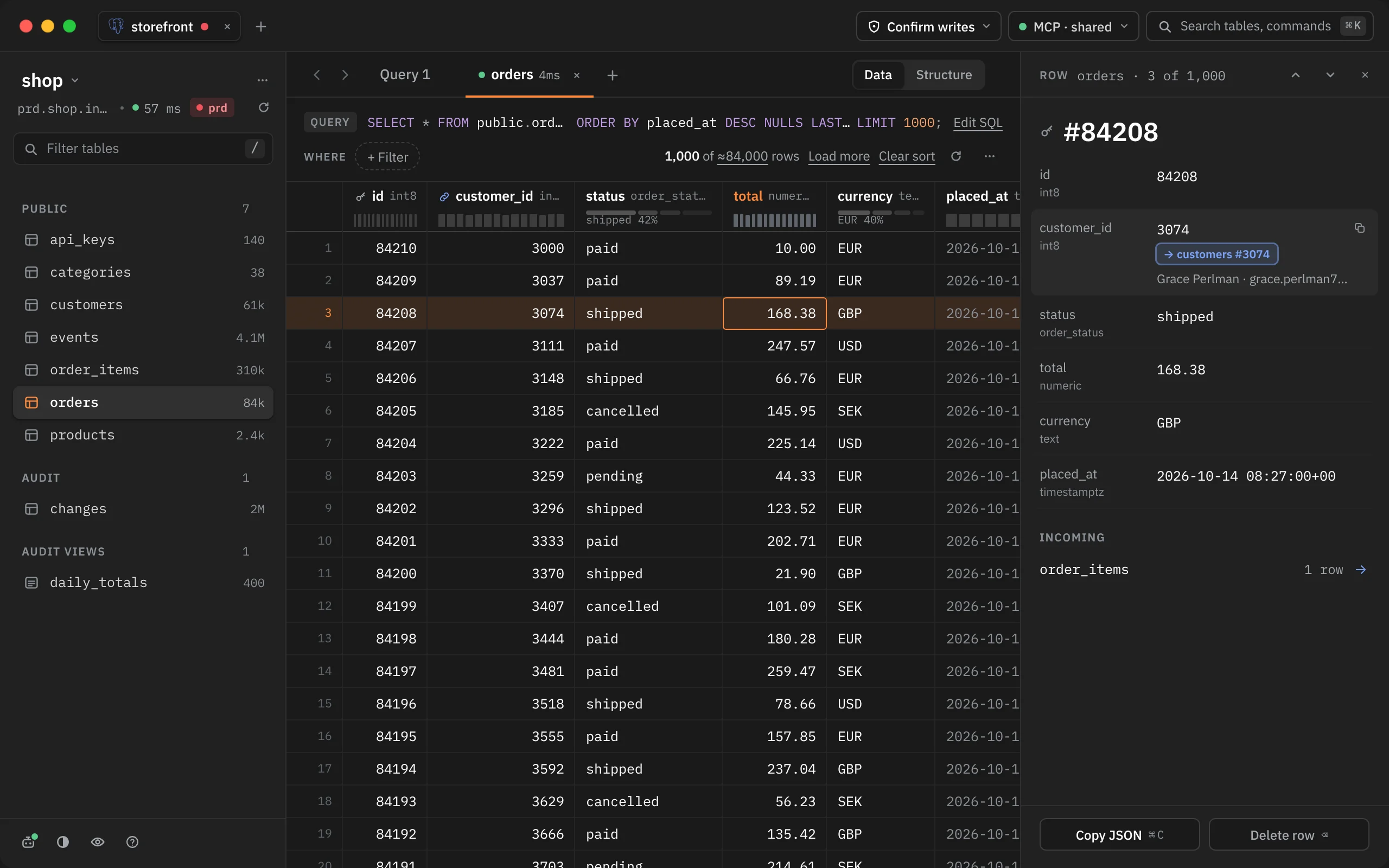
Quick Look shows one row at a time in the column beside the grid: every field on its own line, what its foreign keys point at, and which other tables point back at it. Press Space on a row to open it.
Opening Quick Look
| Do this | What happens |
|---|---|
| Space | Opens Quick Look on the row of the selected cell |
| Right-click a cell › Quick Look | The same, from the cell's menu |
| ⌘K › Quick Look | The same, from search |
| Space or Esc again | Closes it |
Quick Look follows the grid. Move the selection with the arrow keys, or click another row, and Quick Look shows that row. The ↑ and ↓ buttons in its head step to the previous and next row too, and the head says where you are, such as orders · 3 of 1,000.
It opens in the inspector column on the right, beside the grid and never over it. That column holds one thing at a time: opening Review SQL replaces Quick Look, and Quick Look replaces Review SQL.
Making it wider or narrower
Drag the column's left edge. It can be from 320 px up to 60% of the window wide; double-click the edge to go back to the default. Rowkery remembers the width you chose.
Reading a row
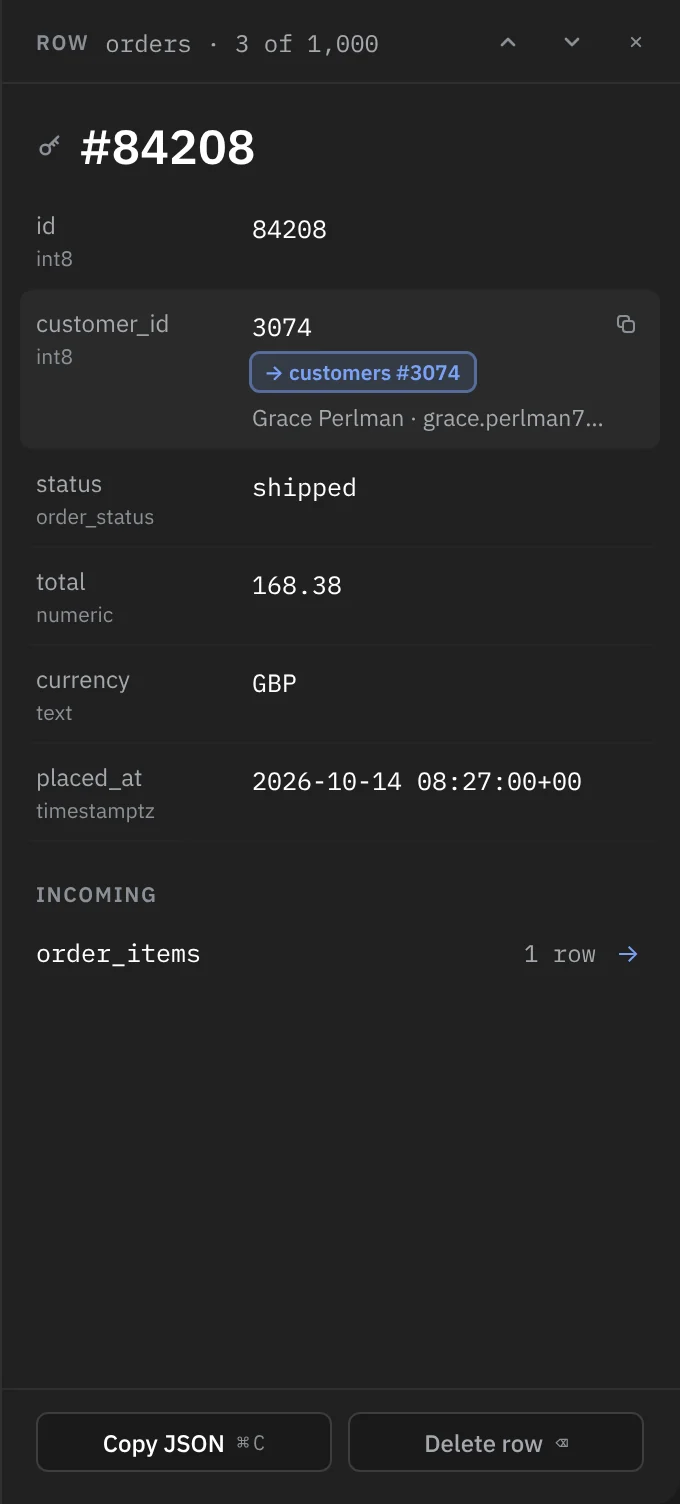
The title is the row's most readable value: the first column named like a name (name, title, label, display_name, full_name, username, email, code, slug, or anything ending in _name). Without one it's the primary key, such as #84208, then the first text value. A key icon beside the title means the table has a primary key.
Below the title, each column gets its own line with its type under its name, and its comment if it has one. Long values wrap, so you can read a whole address or description without widening a grid column.
- NULL means the value is NULL; — means an empty string.
- JSON is shown pretty-printed, unless reformatting would change a number in it, in which case you see it exactly as stored.
- Hover a field and click its copy button to copy that value. A NULL copies as
NULL. - Edits you've staged but not committed show in Quick Look as they will be saved.
- While you're presenting, columns marked sensitive show as dots. See Sensitive columns and presenting.
Following foreign keys
A column that is a foreign key gets a second line: a button naming the row it points at, such as → customers #3074, and a label for that row made from its name-like or text columns, such as Grace Perlman · grace.perlman74@example.com. If nothing matches, it says no matching customers row. Rowkery fetches these labels as soon as the selection settles, so they're usually there by the time you look.
Click the button to open that row: the table opens in the preview tab, filtered to the one row, with Quick Look on it. ⌘-click opens it in a tab of its own instead, and a toast says so.
Incoming rows
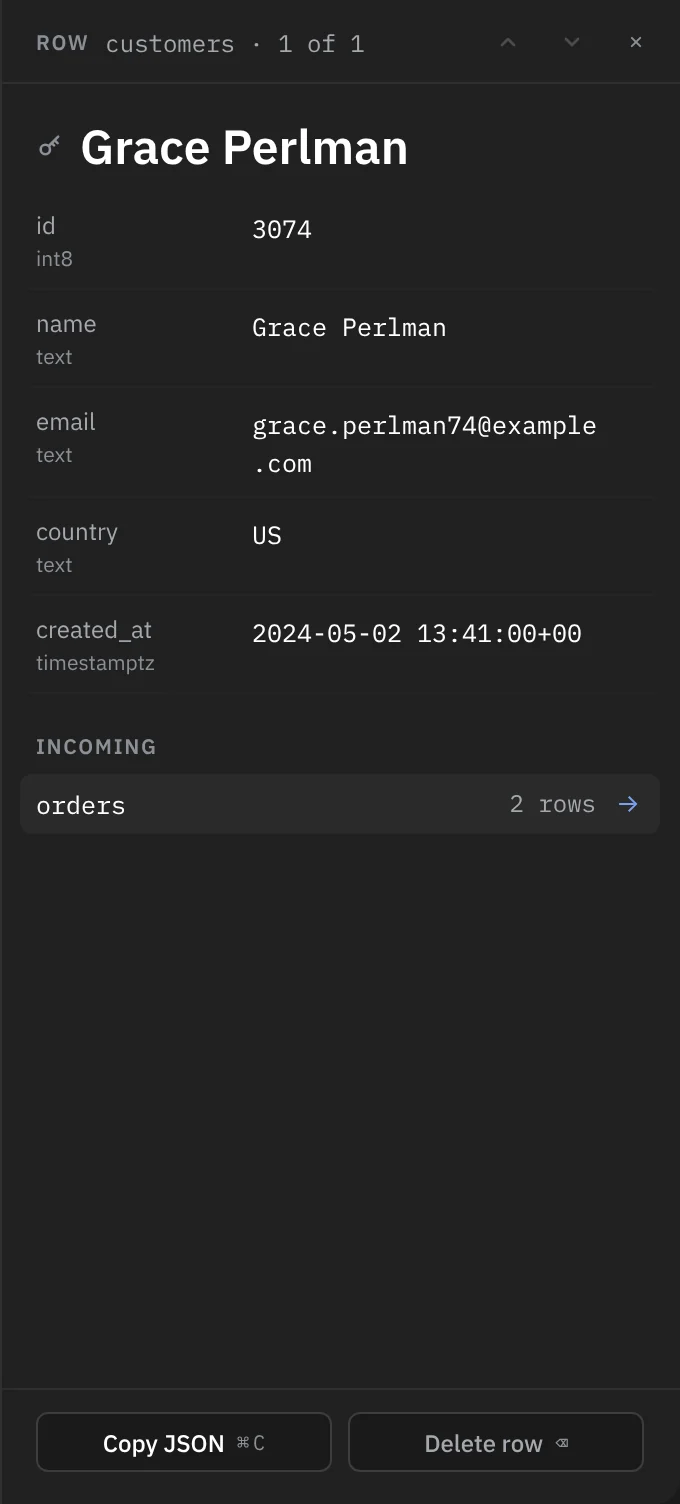
Incoming lists the tables whose foreign keys point at this row, with how many rows each has. For a customer, that's their orders; for an order, its items.
- Counts stop at 100 and show 100+ past that.
- A count shows — until it arrives.
- Click a table to open its rows that point here, filtered, in the preview tab. ⌘-click opens a tab of its own. A table with 0 rows can't be clicked.
- Up to 8 tables are listed. If more point here, a last line says how many more, which you'll find in Structure.
Moving with the keyboard
| Key | What it does |
|---|---|
| ↑ ↓ | Previous and next row |
| ⇥ ⇧⇥ | Move between the foreign key lines and the Incoming tables |
| → | Opens the focused key or Incoming table in the preview tab |
| ⌘→ | Opens it in a tab of its own |
| ⌘C | Copy JSON: the whole row |
| ⌫ | Delete row: marks the row for deletion |
| Space or Esc | Closes Quick Look |
Copying the row as JSON
Copy JSON ⌘C at the foot of Quick Look copies the whole row as one JSON object keyed by column name, and a toast reads Copied row · JSON. Numbers keep every digit, and jsonb values are copied as stored.
Deleting a row
Delete row ⌫ marks the row for deletion, the same as selecting it in the grid and pressing ⌫. Quick Look then shows Marked for deletion and the button becomes Restore row. Nothing is deleted until you commit; see Editing rows.
When keys aren't followed
Foreign keys and Incoming rows come from the catalog, so Quick Look shows them only when the rows come from one table: a table tab, or a query that reads a single table. For a join or any other query, Quick Look still shows the row's fields.